Tharu Kirana Cloud User Guide
Tharu Kirana Cloud brings five modules together in one desktop app: Horoscope, Marriage / Porondam, Litha / Muhurtha, Vastu and Sound Yoni. Calculations run on the Tharu Kirana server, so you need an internet connection. Your saved charts stay in your Cloud Library. The modules and sections you see depend on your plan, and your licence covers one computer.
The screenshots in this guide use made-up sample records.
Start here
Sign in
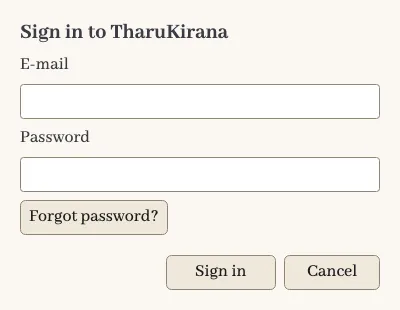
Open the app and sign in with your e-mail and password. Use Forgot password? if you need a new one. If Sign in with Google is shown, you can use that instead. After signing in, the person button at the top right shows your e-mail, your plan and Sign out.
If this computer already has settings, profiles and recent charts, the app offers to import them into your account. The original files are kept.
When a new version has downloaded, a Restart to Update button appears. Select it when you are ready.
Create a horoscope
- Select New in the toolbar.
- Enter the Name and choose Male or Female.
- Enter the birth Year, Month, Day, Hour, Minute and Second. Current Date fills in the present moment.
- Choose the Country and type the Place.
- Check Latitude, Longitude, Time zone offset and Daylight saving. These decide the result, so check them for every chart, and especially for a foreign birthplace.
- Select OK. The chart is calculated and opens on the Main section.
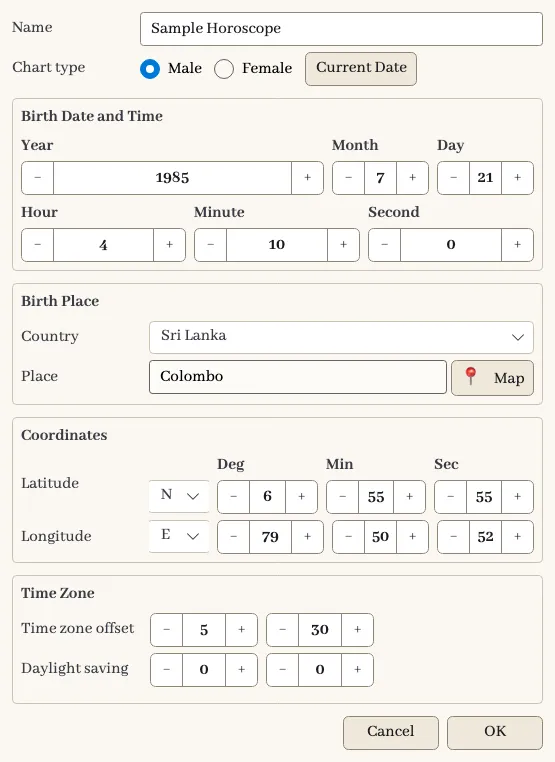
Map previews the coordinates and lets you pick a position. After a place is found, ↻ Google Maps asks again for the time zone and daylight saving on the chart’s date. To correct a chart later, select the pencil beside the person’s name at the top left, change the details and select OK.
Find your way around
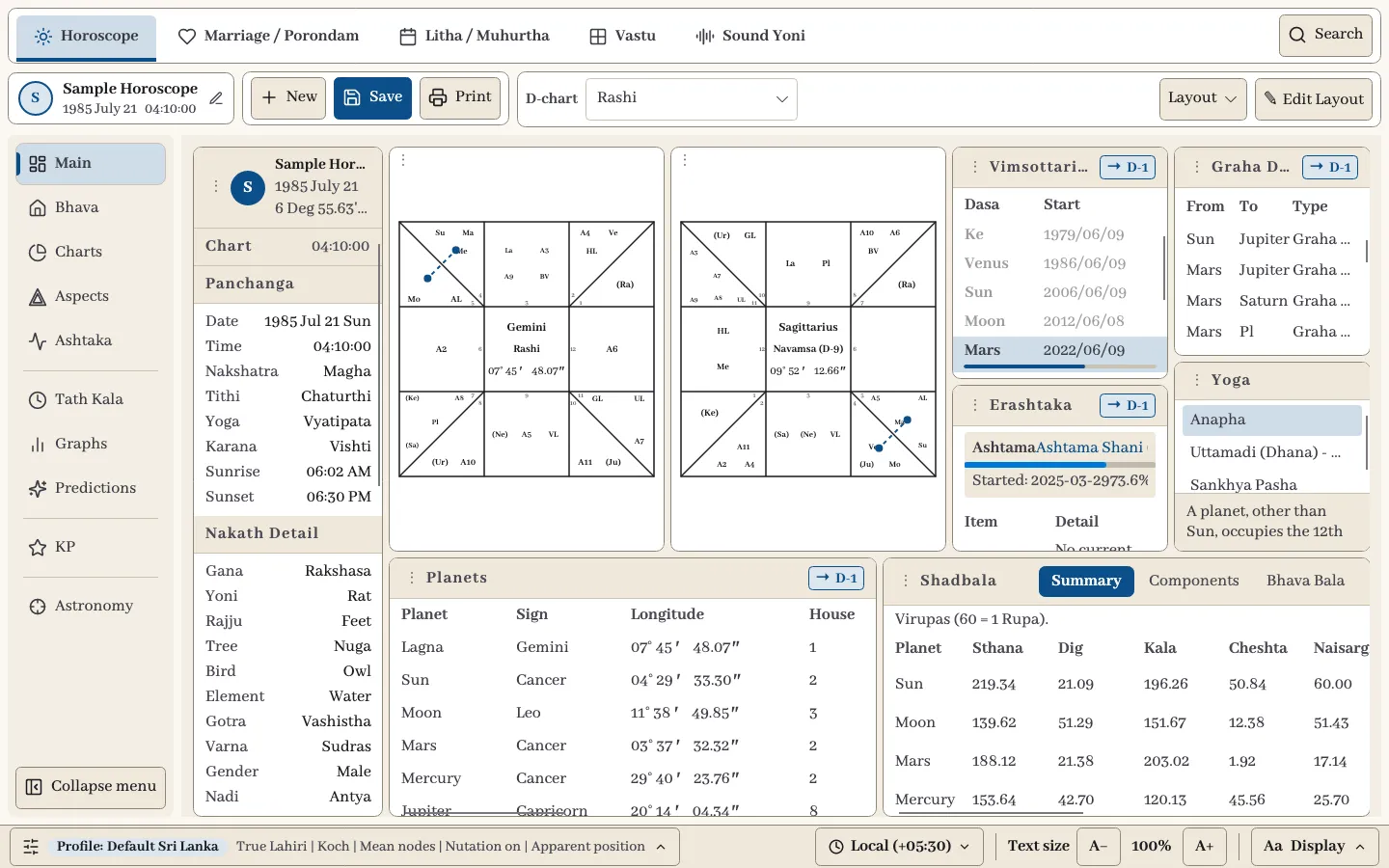
| Part of the window | What it does |
|---|---|
| Module tabs (top) | Switch between Horoscope, Marriage, Litha, Vastu and Sound Yoni. |
| Search (top right) | Find any module, section or command by typing its name. Press Ctrl+K (Cmd+K on macOS). |
| Person card (toolbar, left) | Shows whose chart is open. Check it before saving or printing. The pencil changes the birth details. |
| New, Save, Print | The main file actions for the Horoscope module. |
| Section toolbar | Tools for the current section. They change as you move between sections. |
| Left menu | Selects a section of the module. Collapse menu shrinks it to icons. |
| Settings in use (bottom left) | Shows the active profile and the main calculation choices. Select it to switch profile or open Settings. |
| Time zone (bottom) | Chooses the zone used for displayed times: your computer, the observer location, UTC or a listed city. |
| Text size (bottom) | A− and A+ make all text smaller or larger. |
| Display (bottom right) | Chooses the Day, Night, Parchment or High contrast theme. |
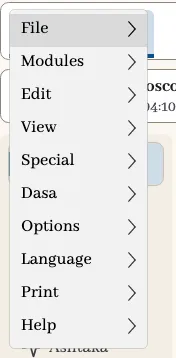
The full menu has File, Modules, Edit, View, Special, Dasa, Options, Language, Print and Help. On Windows and Linux, open it with the More button at the top right or press F10. On macOS these menus are in the system menu bar at the top of the screen. Where this guide says More →, macOS users go straight to the same menu in the menu bar.
Horoscope
Main dashboard
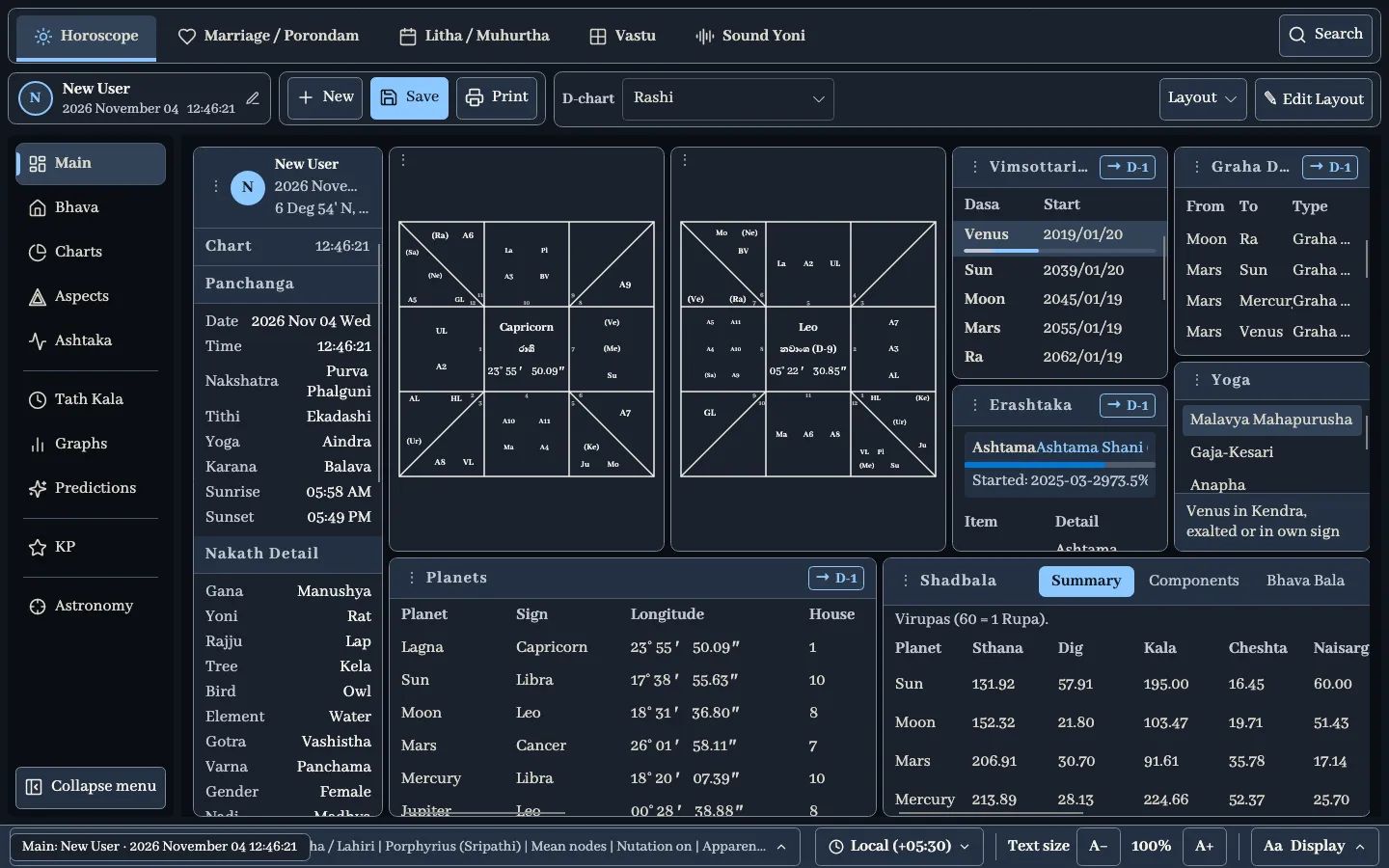
Main is a dashboard made of widgets. You can choose a ready-made layout or build your own.
| Widget | What it shows and how to use it |
|---|---|
| Info Rail | Birth details, Panchanga (Nakshatra, Tithi, Yoga, Karana, sunrise, sunset) and Nakath detail (Gana, Yoni, Rajju, tree, bird, element, Gotra, Varna, gender, Nadi), with Dasa analysis, Hora, sidereal time and Karakas further down. |
| D-Chart | A natal or divisional chart. Use the D-chart selector in the toolbar for the main chart. The divisions run from Hora (D-2) to Navanavamsa (D-81), with Parivritti charts and alternative methods for Hora, Drekkana, Chaturthamsa and Trimsamsa. Two charts can sit side by side, such as Rashi and Navamsa. |
| Dasa | Planetary periods with start and end dates. Switch between Vimsottari, Yogini, Ashtottari and Naarayana. Select a period to step down through Maha, Antar, Vidasa, Sookshma, Prana and Deha levels, and use Back to return. |
| Sub Grid | Switch between Erashtaka, Special Nakshatra Tara (from the Moon or Lagna), Nakath Tara, Vedha, Viparitha Vedha and Saturn’s Vehicle. |
| Aspects | Switch between Graha Drushti, Rashi Drushti, Graha Yoga and Astha (combust). Each row gives the planet from, the planet to and the type. |
| Yoga | The combinations found in the chart. Select one to read its condition below the list. |
| Planet Grid | Exact positions. Switch between All Body, Basic Body, Special Lagna, Upagraha, Special Sputa, Sahama and Arudha Pada. Columns include sign, longitude, house, Nakshatra, Pada, lords, Avastha, Sayanadi and status. |
| Shadvarga | Each planet’s sign and degree in the six divisions. |
| Shadbala | Planetary strength in Summary, Components and Bhava Bala views. Values are in Virupas; 60 Virupas equal 1 Rupa. |
Some widgets carry a link button such as → D-1. It shows which chart the widget follows. Right-click the widget to link it to another chart.
Right-click a widget to change what it shows. Most widgets also offer these actions:
- Copy as image and Copy as text place the widget on the clipboard.
- Pop out copy opens a separate window with its own display choices. It does not change the original widget.
- Export to CSV saves the Planet Grid for a spreadsheet.
Chart options
Right-click a chart to open its menu.
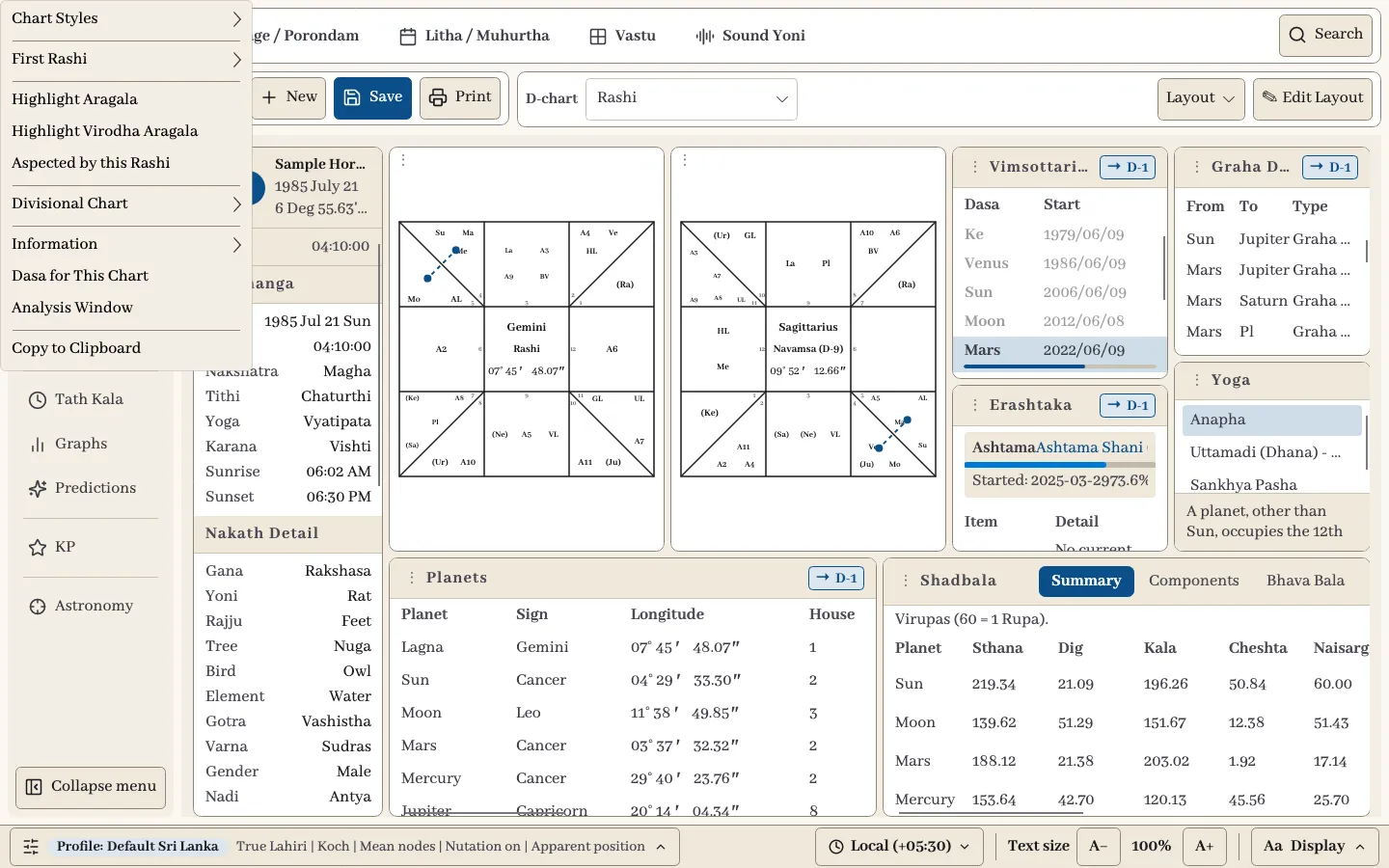
| Menu item | What it does |
|---|---|
| Chart Styles | Sun (Irregular), Sun (Regular), Guru (South Indian) or Bringu (North Indian). |
| First Rashi | Starts the chart from the Ascendant, Arudha Lagna, Upapada Lagna, A2 to A11 or a planet. |
| Highlight Aragala / Virodha Aragala | Marks these influences on the chart. |
| Aspected by this Rashi | Shows the signs aspected from the selected Rashi. |
| Divisional Chart / Parivritti Chart | Changes the division shown in this chart. |
| Information | Opens Astronomy Information or Aspects for this chart. |
| Dasa for This Chart | Shows the Dasa based on this chart. |
| Analysis Window | Opens a written analysis. |
| Copy to Clipboard | Copies the chart. |
Right-click a Dasa period for Set This Time as Tath Kala and Entry Chart.
Layouts
The Layout button lists ready-made arrangements:
| Layout | Best for |
|---|---|
| Full | Every panel at once. |
| Simple | Birth details, the chart and the running Dasa, with planets underneath. |
| Large print | Chart, Dasa and planets as large as possible. |
| Chart focus | One large chart with Dasa and aspects beside it. |
| Compare charts | D-1 beside D-9. |
| Dasa reading | The chart with Vimsottari and Yogini Dasa side by side. |
| Shadvarga summary | Every planet’s sign in each division. |
| Planetary strength | The chart and Dasa above Shadbala. |
| Tables only | Planets, Yogas, aspects and the Sub Grid, without a chart. |
Save current layout as… keeps your own arrangement under My layouts.
Select Edit Layout to change the dashboard.
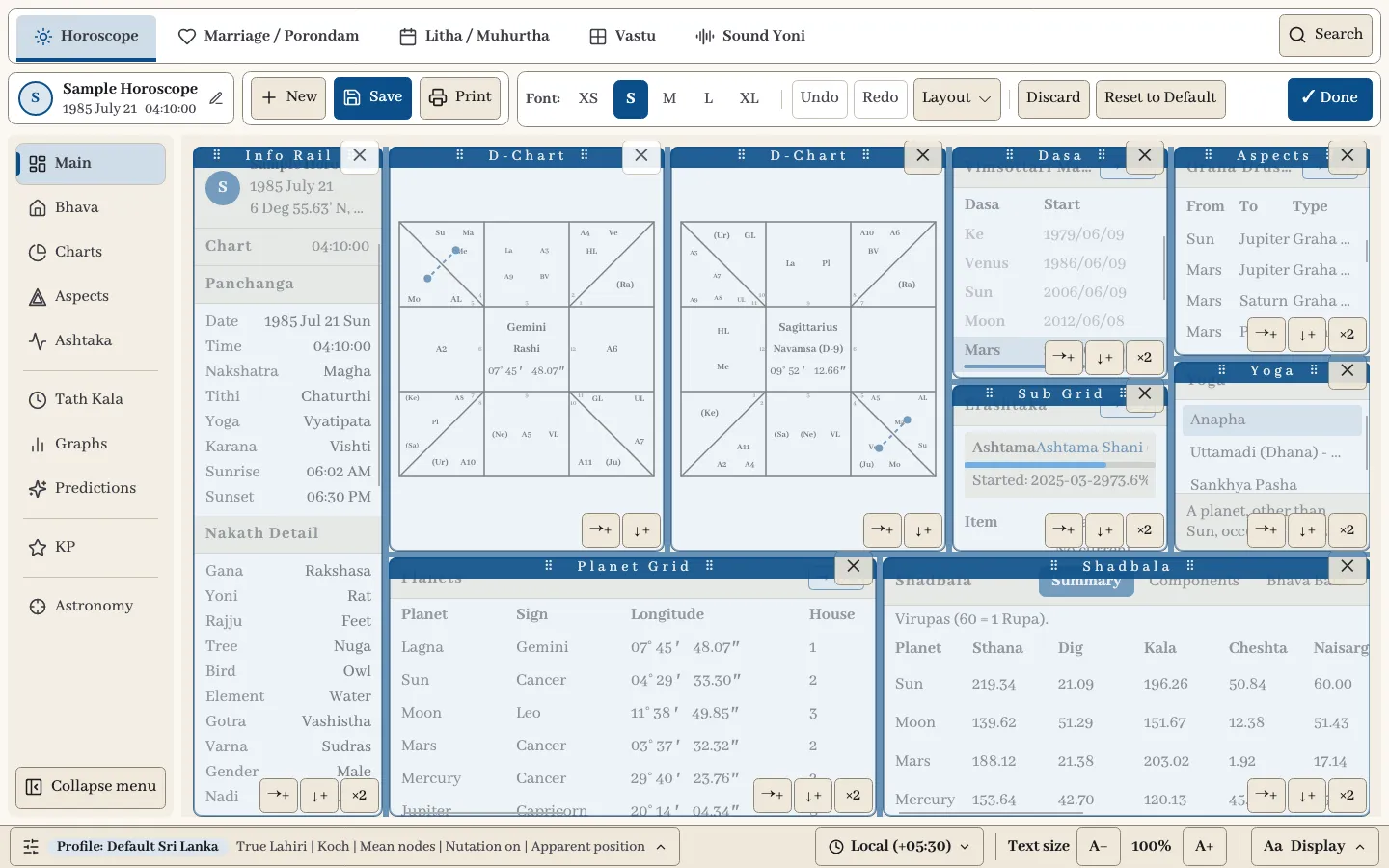
- Drag a widget by its title bar onto another widget or to the edge of a pane.
- Drag the borders between widgets to resize them.
- →+ and ↓+ split a pane to the right or below. + Add widget fills an empty pane.
- ×2 adds a second copy beside it, which can show something different.
- × removes a widget.
- Font sets the text size for this dashboard, from XS to XL.
- Undo and Redo step through your changes (Ctrl+Z and Ctrl+Y).
- Done keeps the changes. Discard returns to the last saved layout. Reset to Default restores the original layout.
Layouts change only how results are shown. They never affect a calculation.
Bhava
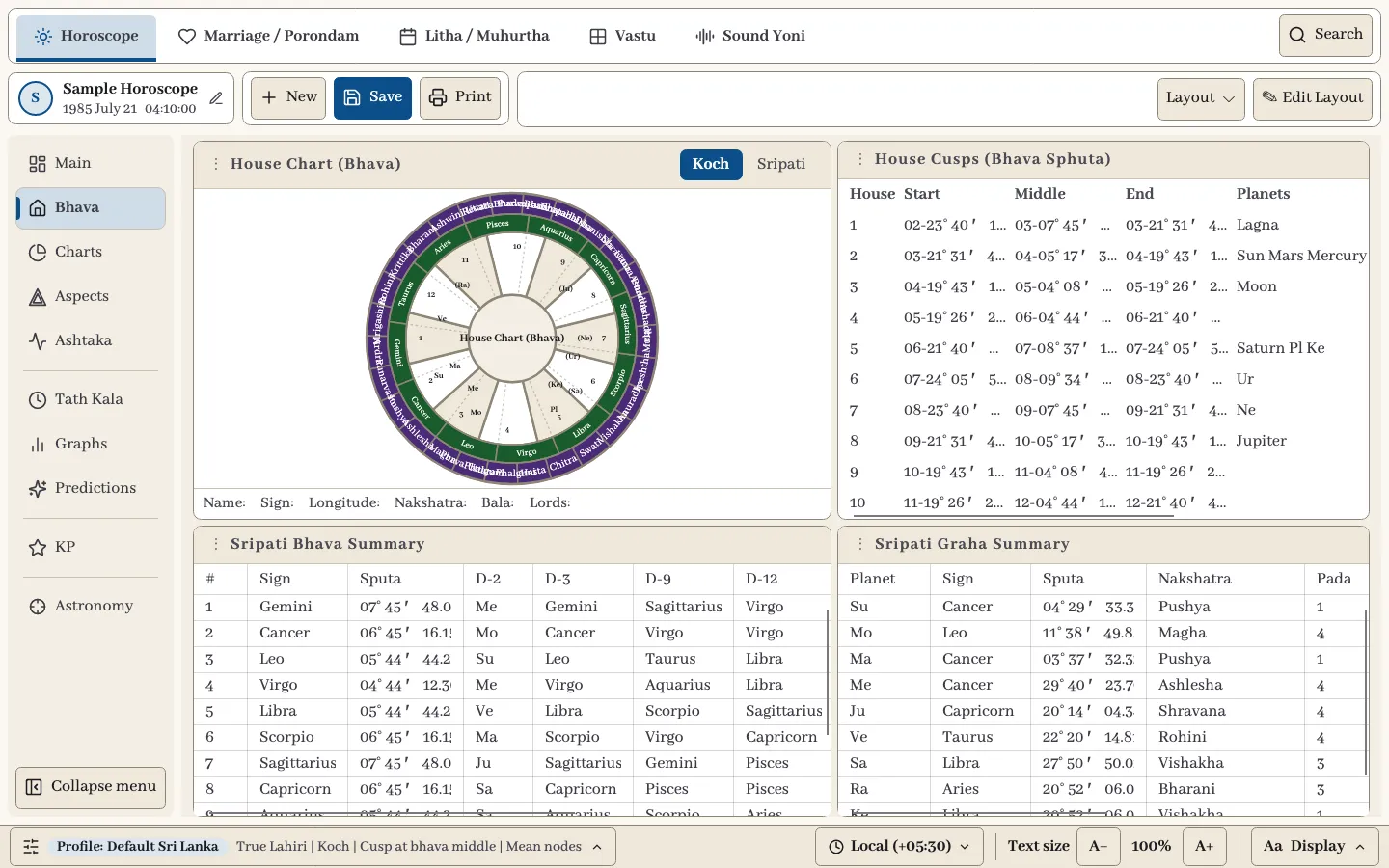
The Bhava section brings the house views together: House Chart wheels, House Cusps, Sripati Bhava Summary and Sripati Graha Summary. Each wheel switches between the bhava system chosen in Settings and Sripati. Select a planet on a wheel to read its details underneath.
The ready-made layouts are Full, Compare wheels and Tables only. Use Compare wheels to place the two systems side by side.
Charts
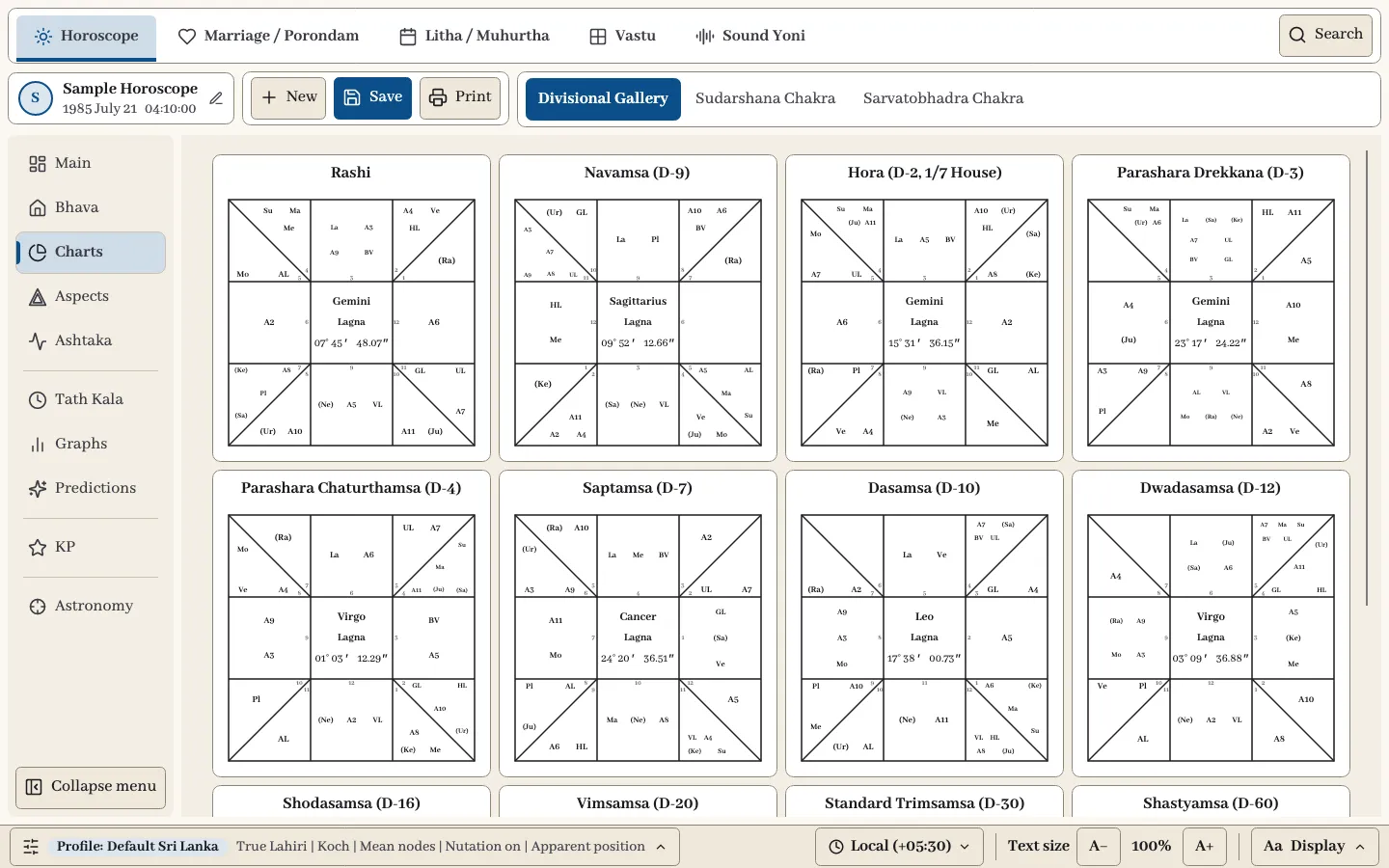
The toolbar switches between three views.
Divisional Gallery shows the divisional charts together, each with its own Lagna degree. Scroll down for the higher divisions. Right-click a chart to change its division or rotate it.
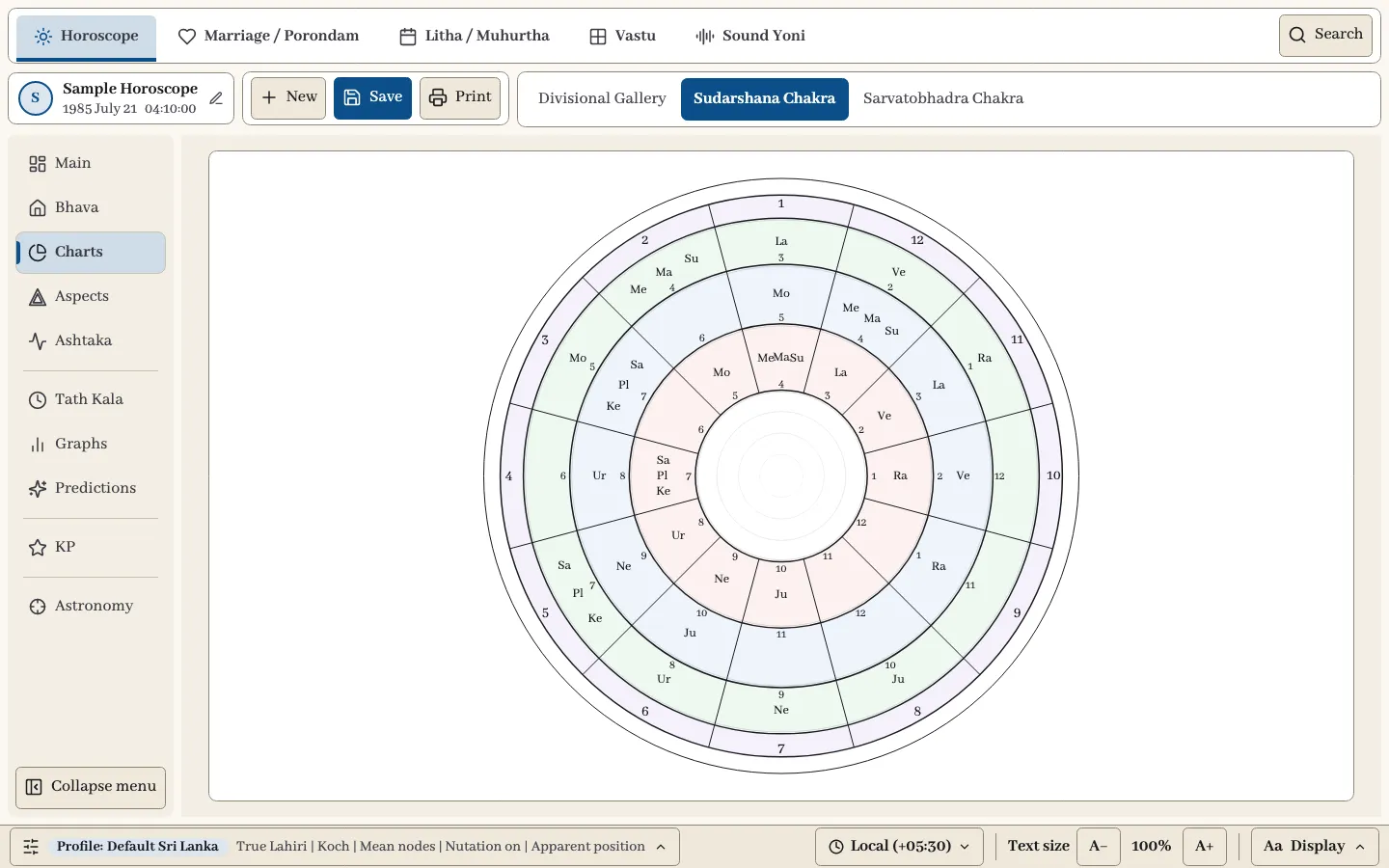
Sudarshana Chakra reads the chart at once from the Lagna, Moon and Sun.
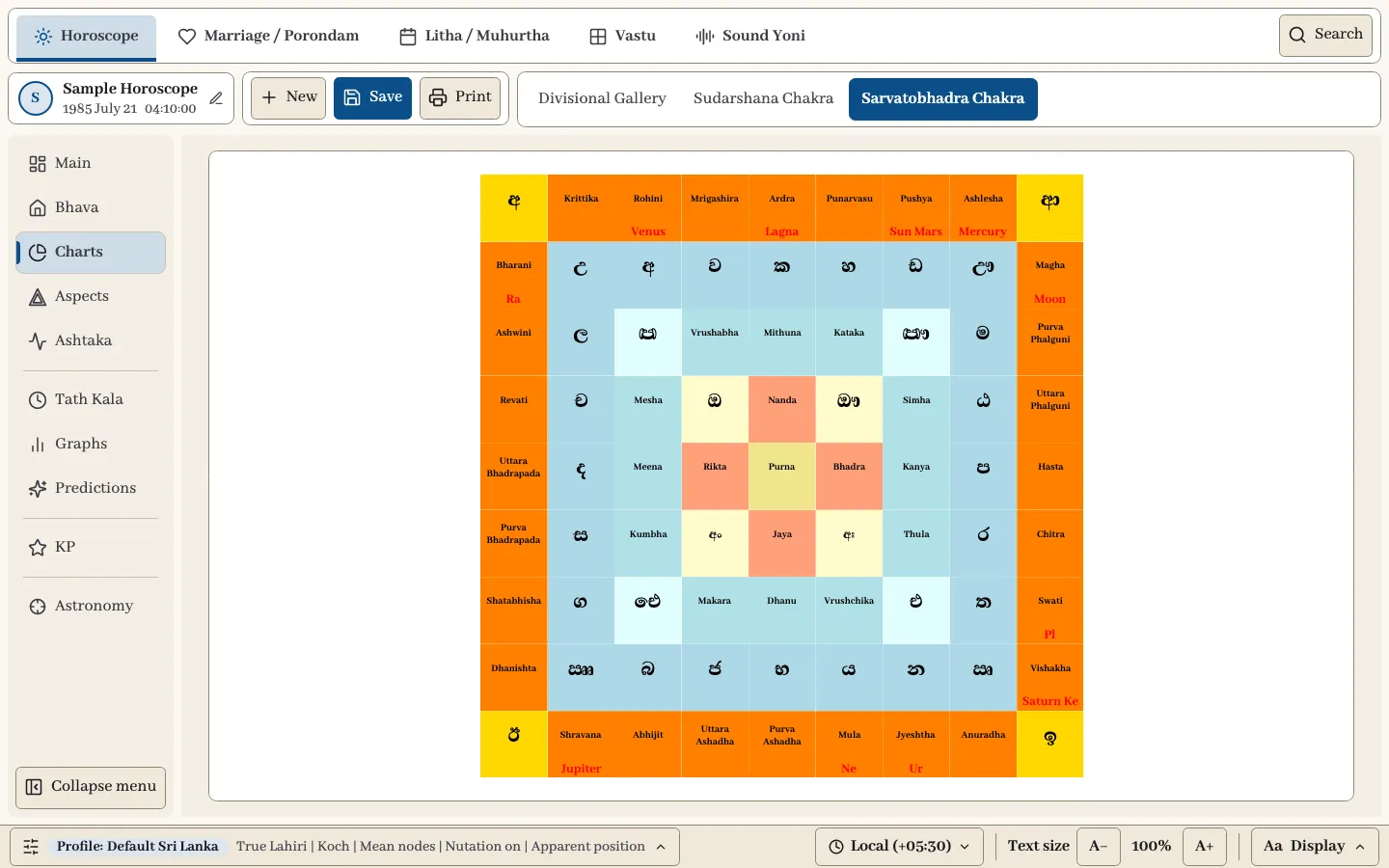
Sarvatobhadra Chakra places the planets on the 81-square chakra with its Nakshatras, vowels, consonants, signs and Tithis.
Aspects
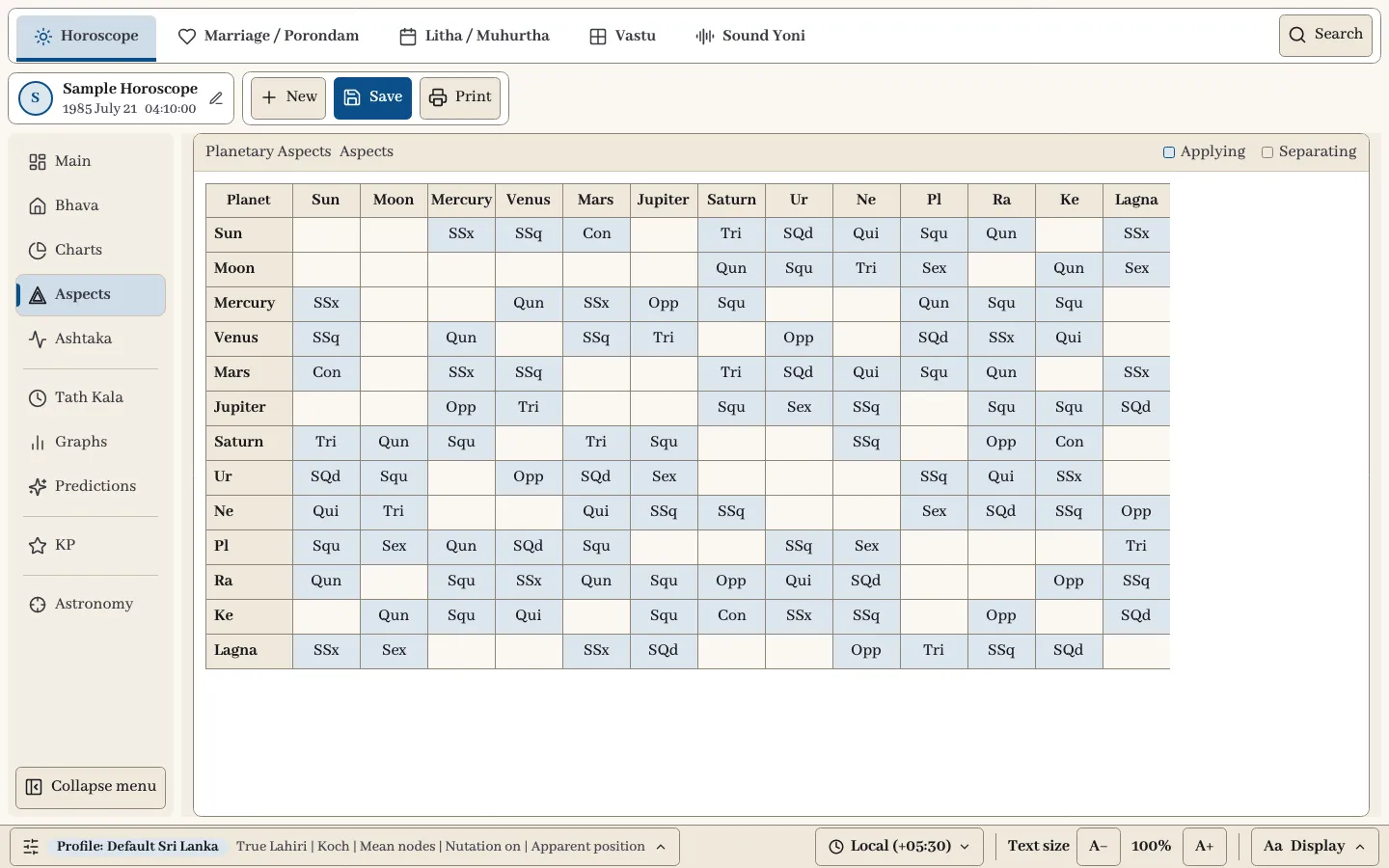
This section shows every pair of planets in one table. Read along a row and down a column to find the aspect between two planets. The shading shows whether an aspect is Applying or Separating; the key is at the top right.
| Code | Aspect | Angle |
|---|---|---|
| Con | Conjunction | 0° |
| SSx | Semi-sextile | 30° |
| SSq | Semi-square | 45° |
| Sex | Sextile | 60° |
| Qun | Quintile | 72° |
| Squ | Square | 90° |
| Tri | Trine | 120° |
| SQd | Sesquiquadrate | 135° |
| Qui | Quincunx | 150° |
| Opp | Opposition | 180° |
Ashtaka
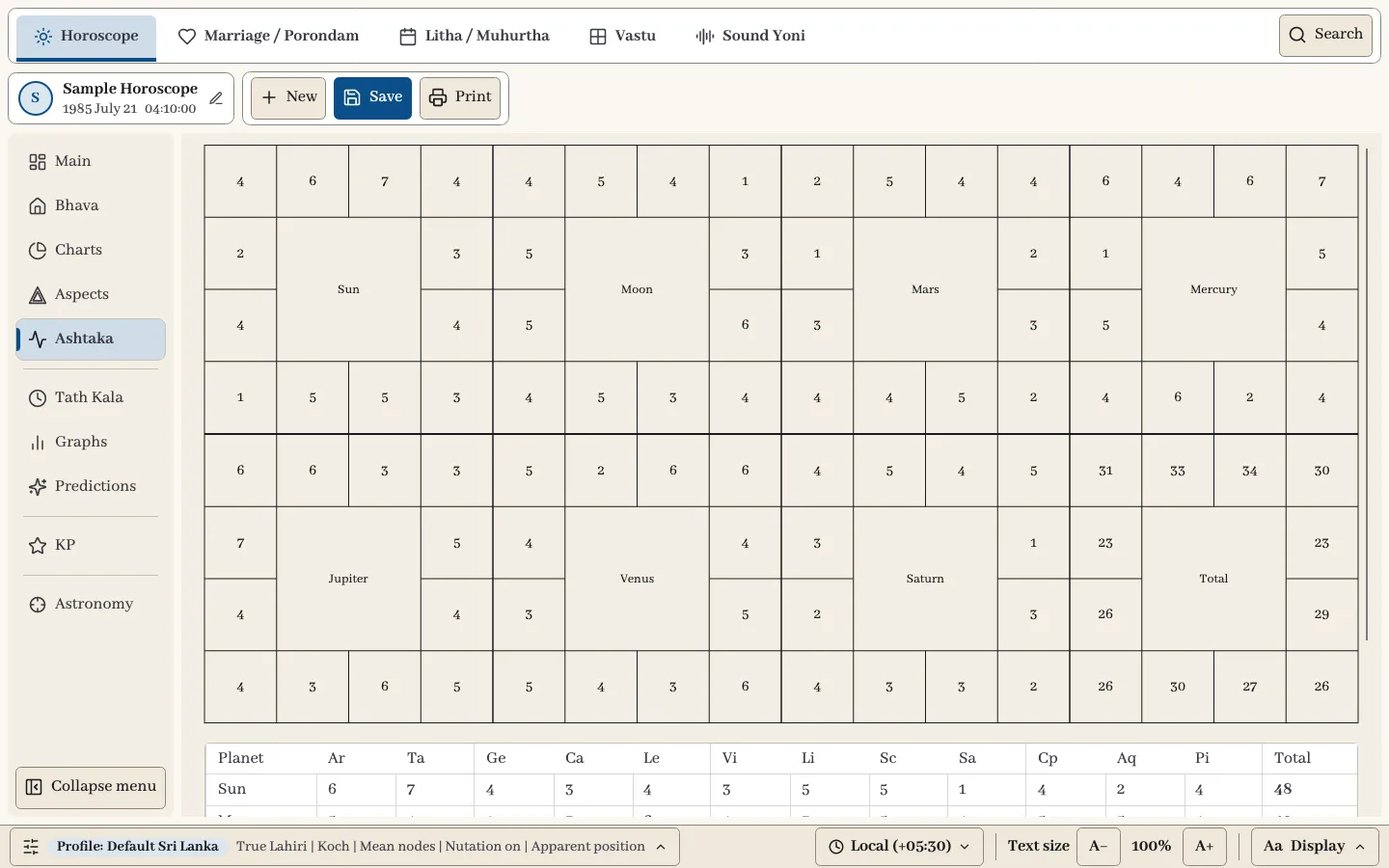
This section shows the Ashtaka Varga points of the Sun, Moon, Mars, Mercury, Jupiter, Venus and Saturn, plus the Total, as grids. Scroll down for the table of the same points by sign, with each planet’s total.
Tath Kala
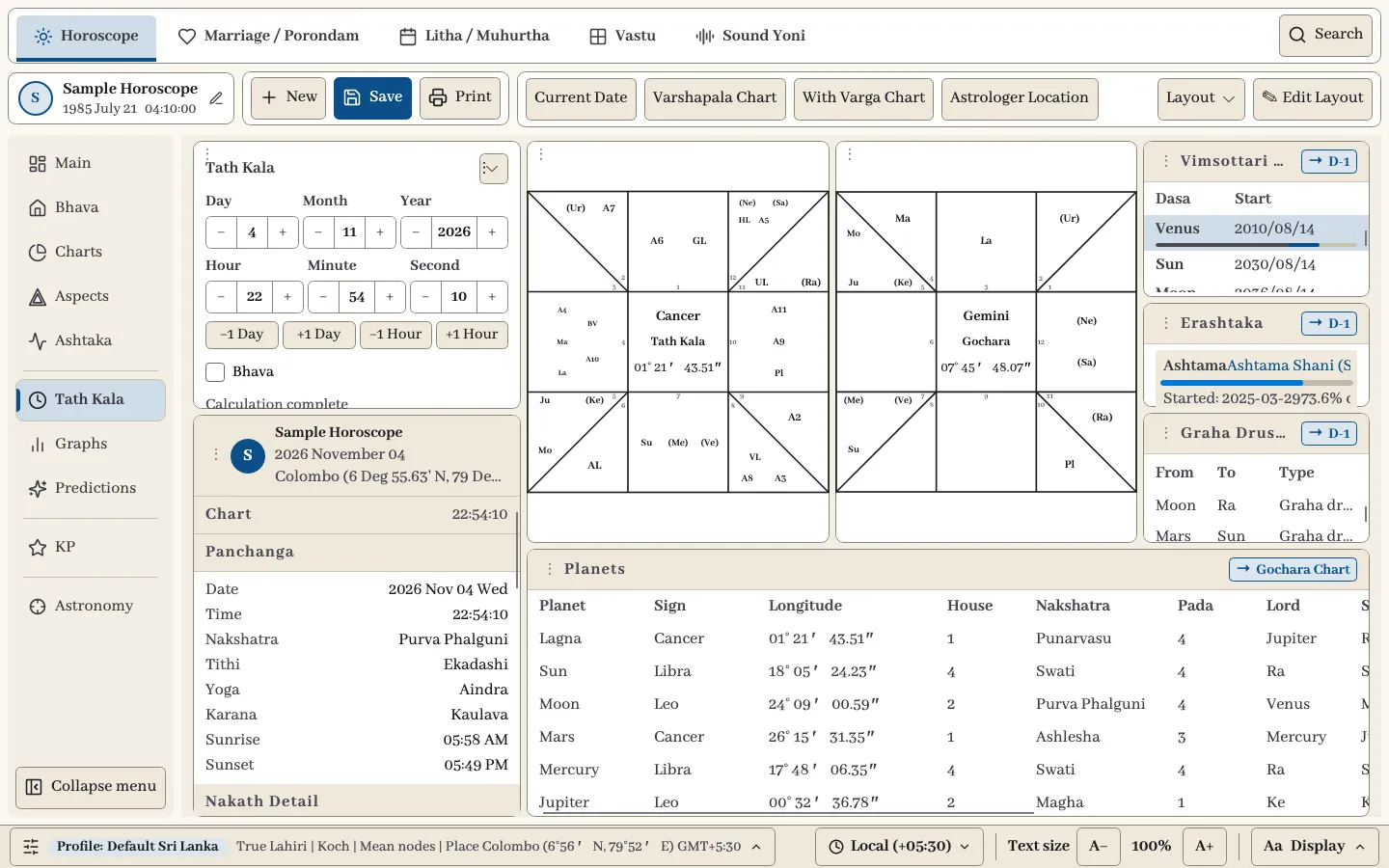
Tath Kala looks at a chosen moment. It shows the chart of that moment beside the Gochara chart, which places the transiting planets on your natal Lagna, with Dasa, Erashtaka, Graha Drushti, a planet table and the Panchanga for that moment.
Set the moment in the Tath Kala widget, or use −1 Day, +1 Day, −1 Hour and +1 Hour to step through time.
| Toolbar button | What it does |
|---|---|
| Current Date | Sets the present moment. |
| Varshapala Chart | Asks for the age and casts that solar return. |
| With Varga Chart | Shows the divisional chart for the moment on the Main section. |
| Astrologer Location | Sets the place, coordinates and time zone used for the moment. You can make it your default. |
The birth location of a chart and the Tath Kala location are separate. The ready-made layouts are Full, Charts and Dasa reading.
Graphs
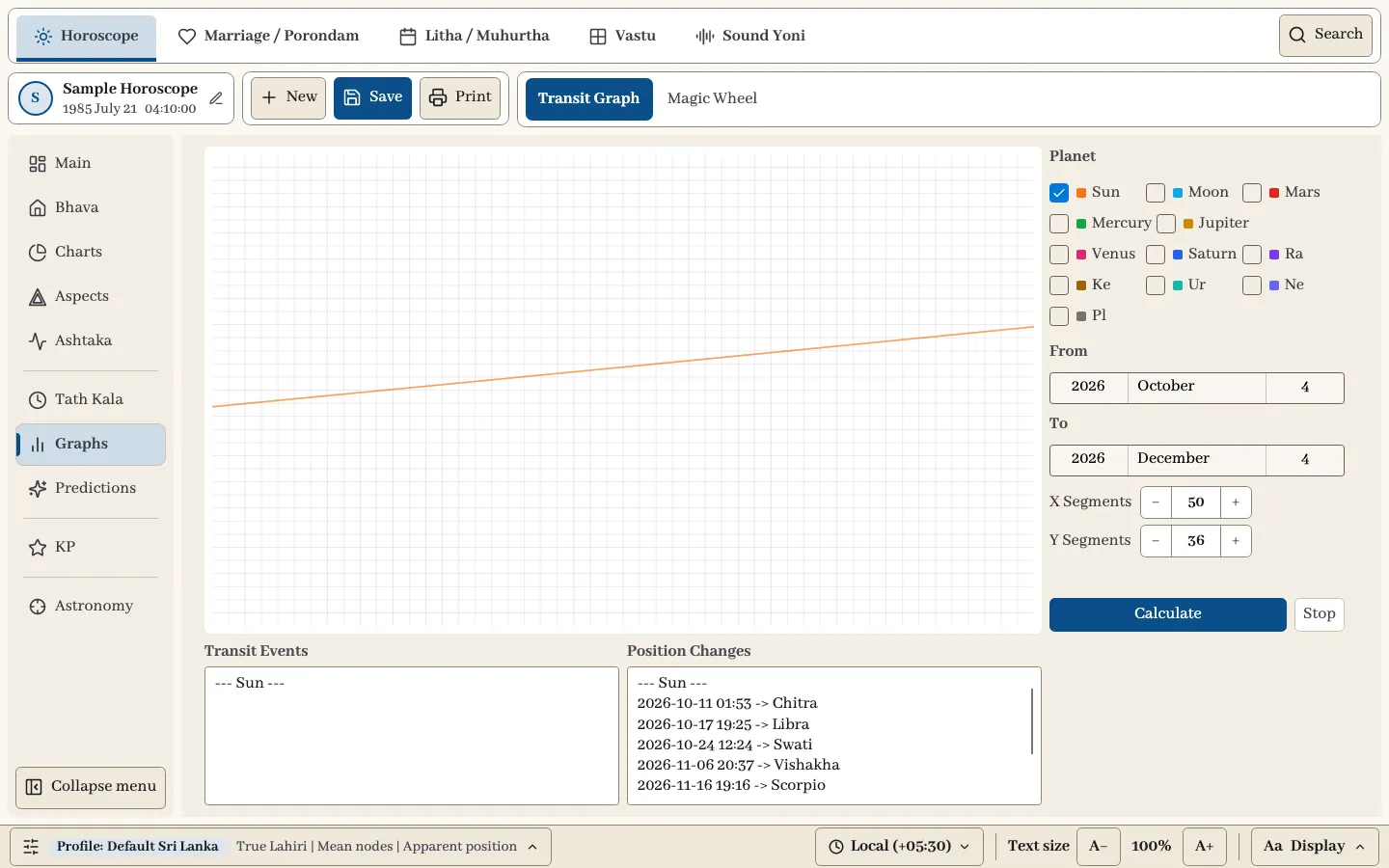
Transit Graph plots planets over a date range. Tick the planets, set From and To, adjust X Segments and Y Segments if needed, and select Calculate. Stop ends a long run. Transit Events lists peaks, valleys and retrograde or direct changes. Position Changes lists each change of Nakshatra and sign with its date and time.
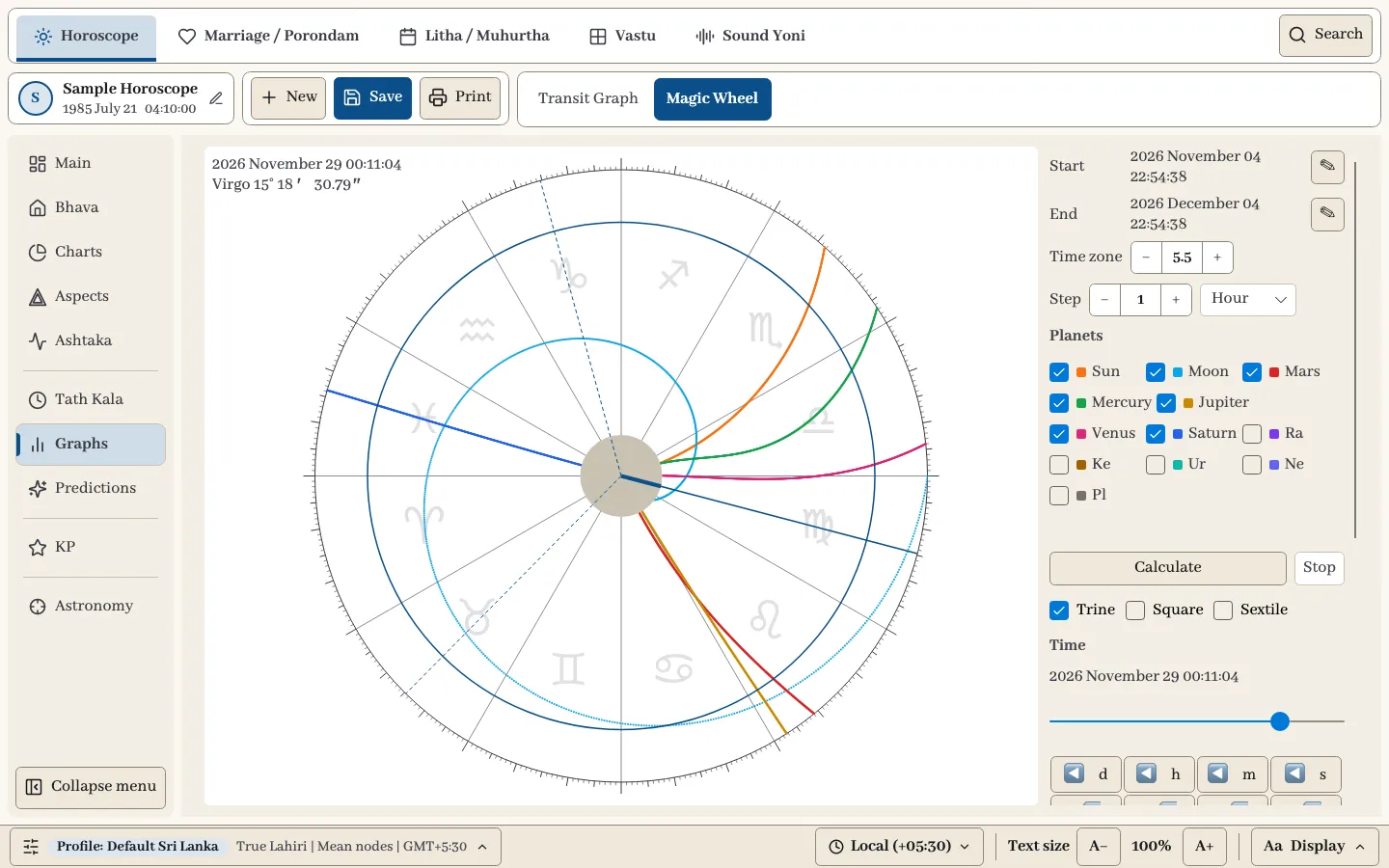
Magic Wheel shows planets moving over a period on one wheel. It is also under More → Special → Magic Wheel.
- Set Start, End, Time zone and Step.
- Tick the Planets and select Calculate.
- Tick Trine, Square or Sextile to draw those relationships.
- Move the time with the slider or the day, hour, minute and second buttons, or drag on the wheel.
Moving the pointer over the wheel shows the time and longitude at that point. Positions at this time lists the planets for the selected moment.
Predictions
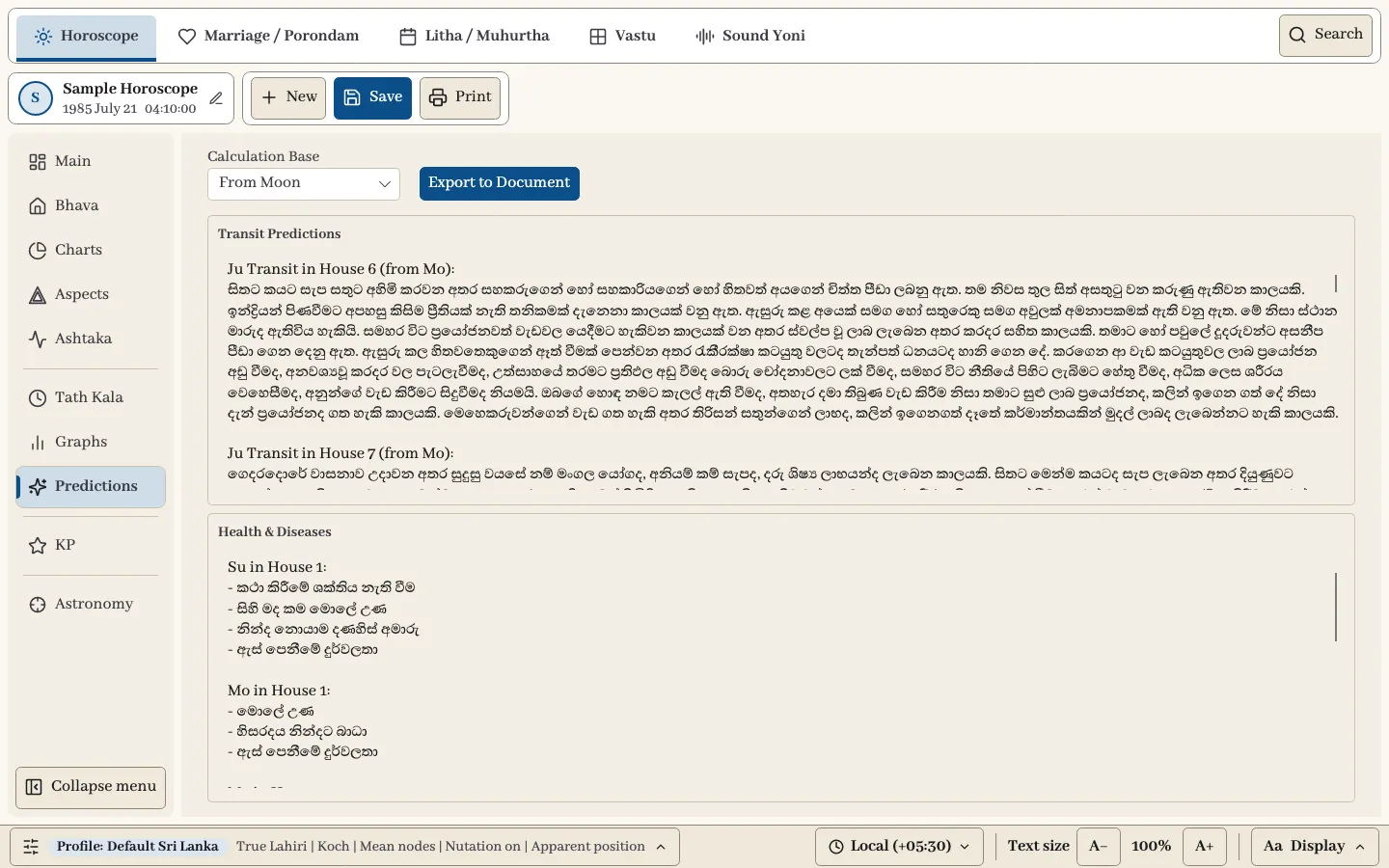
Choose the Calculation Base: From Moon, From Lagna or From Sun. Transit Predictions gives readings for planets in transit, counted from that base. Health & Diseases gives readings from the planets’ houses in the birth chart. The reading text is in Sinhala. Export to Document saves the text as a text file.
KP
The KP section follows Krishnamurti Paddhati, using KP ayanamsa and Placidus houses. The toolbar switches between Birth Chart, Horary and Gochara.
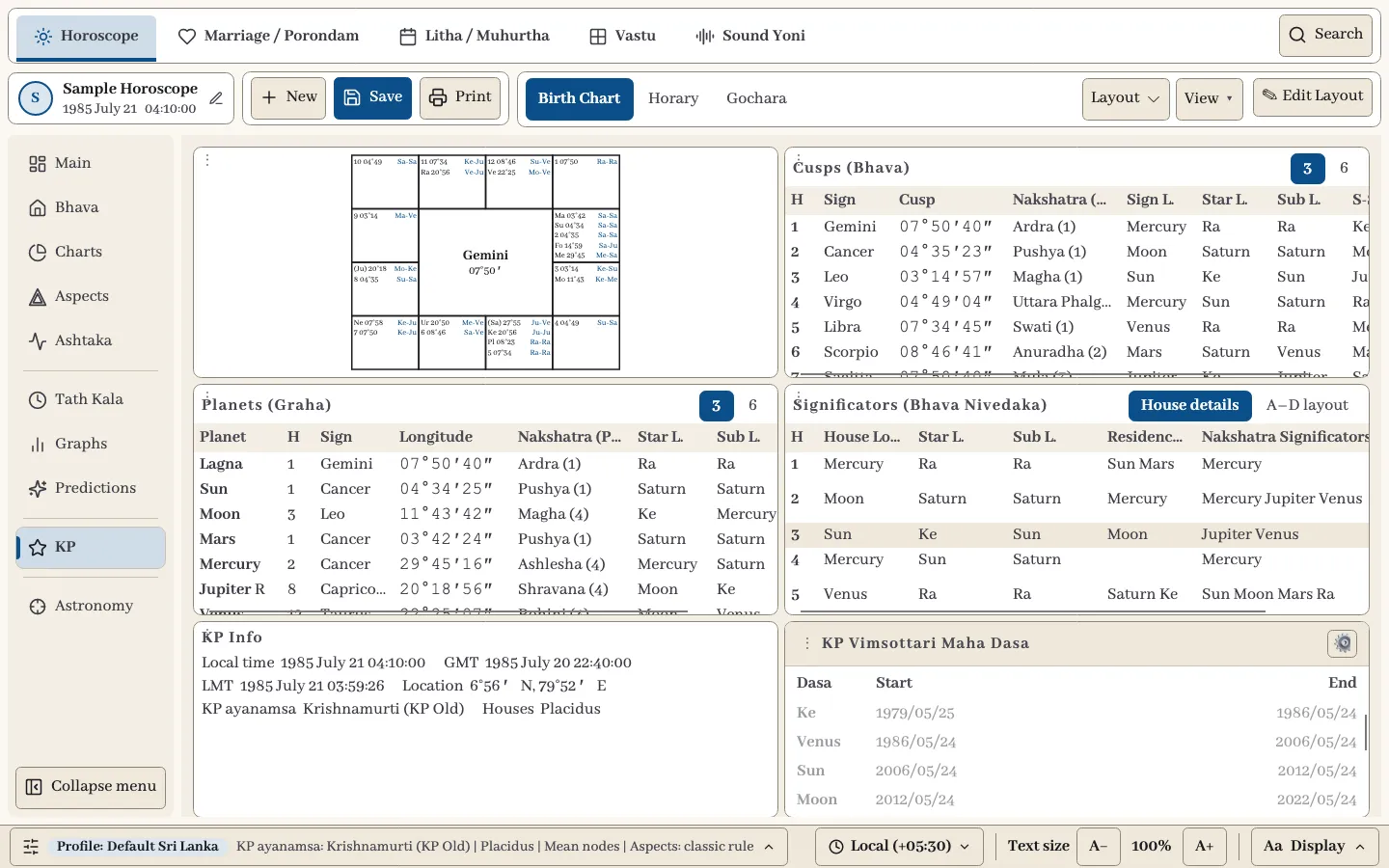
| KP widget | What it shows |
|---|---|
| KP Chart | The square chart for the section. |
| Cusps (Bhava) | House cusps with sign, Nakshatra and lords. 3 shows Star, Sub and Sub-sub lords. 6 goes down to Sookshma, Prana and Deha. |
| Planets (Graha) | Planet positions with the same lord levels. |
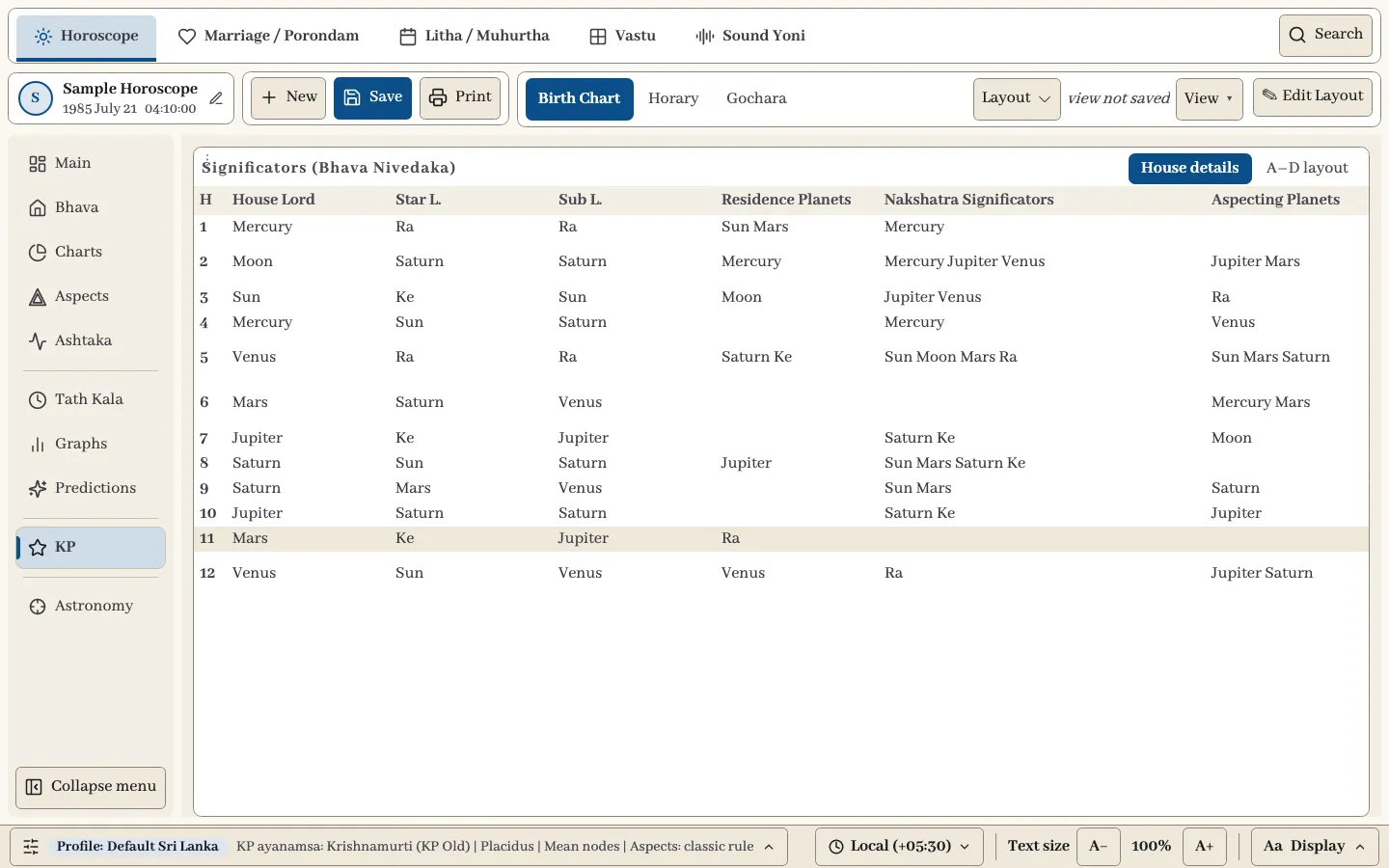
| Significators (Bhava Nivedaka) | House lords, residents, Nakshatra significators and aspecting planets. Switch between House details and A–D layout. |
| KP Info | Times, location, KP ayanamsa and houses, with Ruling Planets (Day, Moon sign, Moon star, Ascendant sign, Ascendant star) where they apply. |
| KP Vimsottari Dasa | Dasa periods in Birth Chart and Horary. The gear sets days per year and total years. |
View brings one group forward: Main, Chart, Tables or Significators. The view is temporary unless you choose Keep this view. Back to my saved layout returns to your layout.
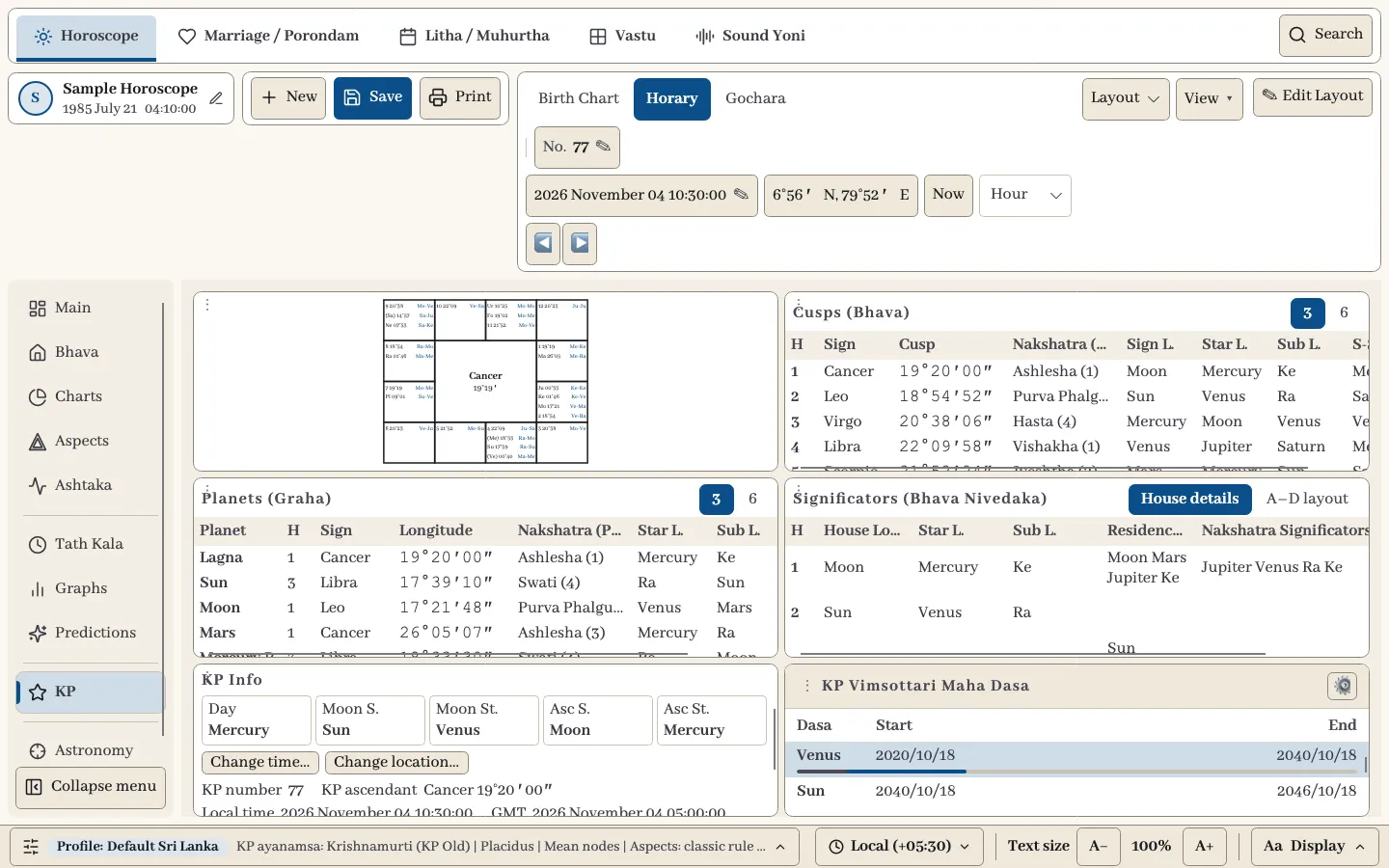
Horary asks for a number from 1 to 249, the question time and the place, then casts the chart. Use Now, a step size and the arrow buttons to move the time. Page Up and Page Down step back and forward; Ctrl+Page Up and Ctrl+Page Down change the step size.
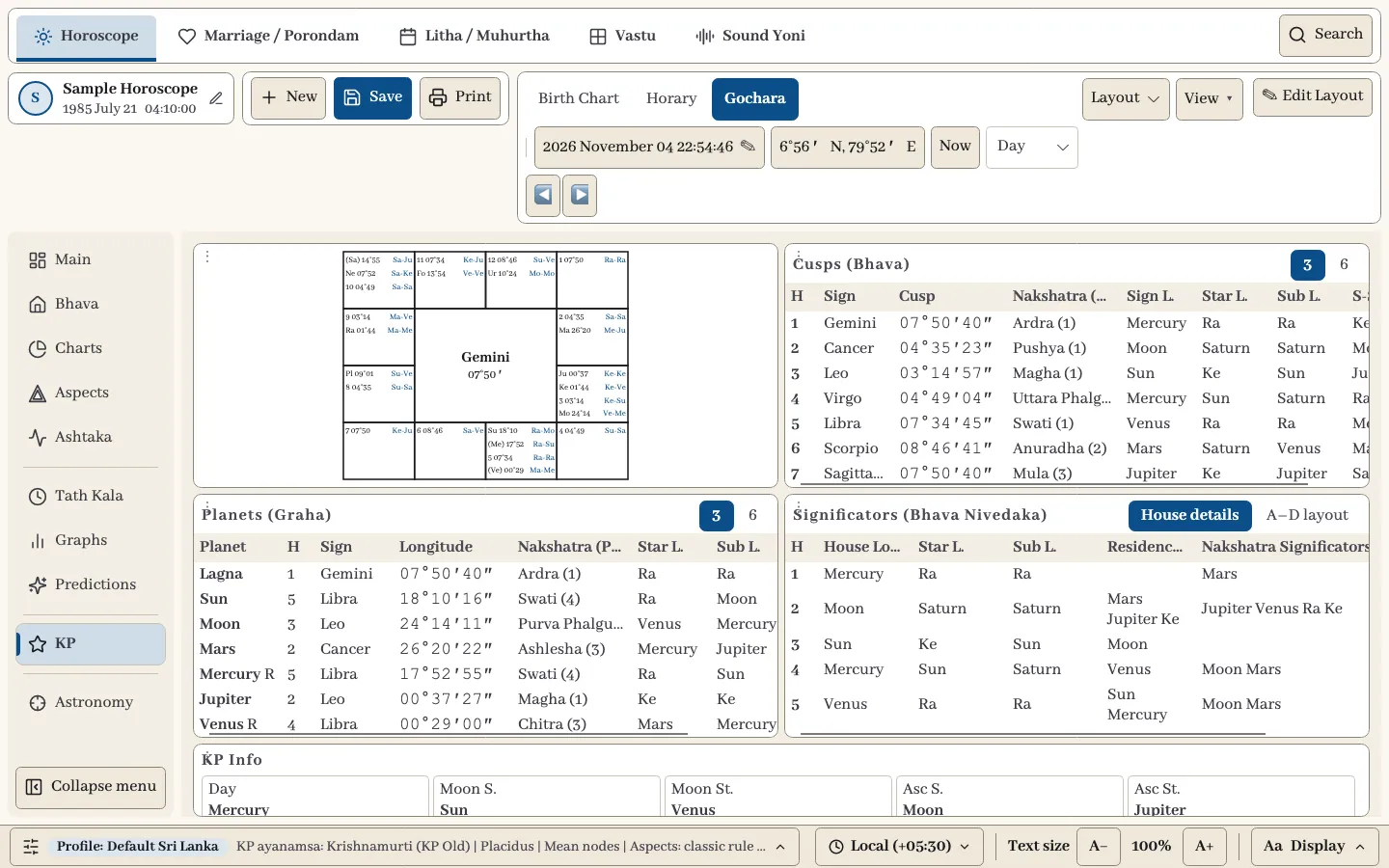
Gochara keeps the natal cusps and places the transit planets on them, for the date, time and location in the toolbar.
Astronomy
Astronomy lists the values behind the chart for each planet: longitude, latitude, distance in AU, speeds in longitude, latitude and distance, right ascension and declination.
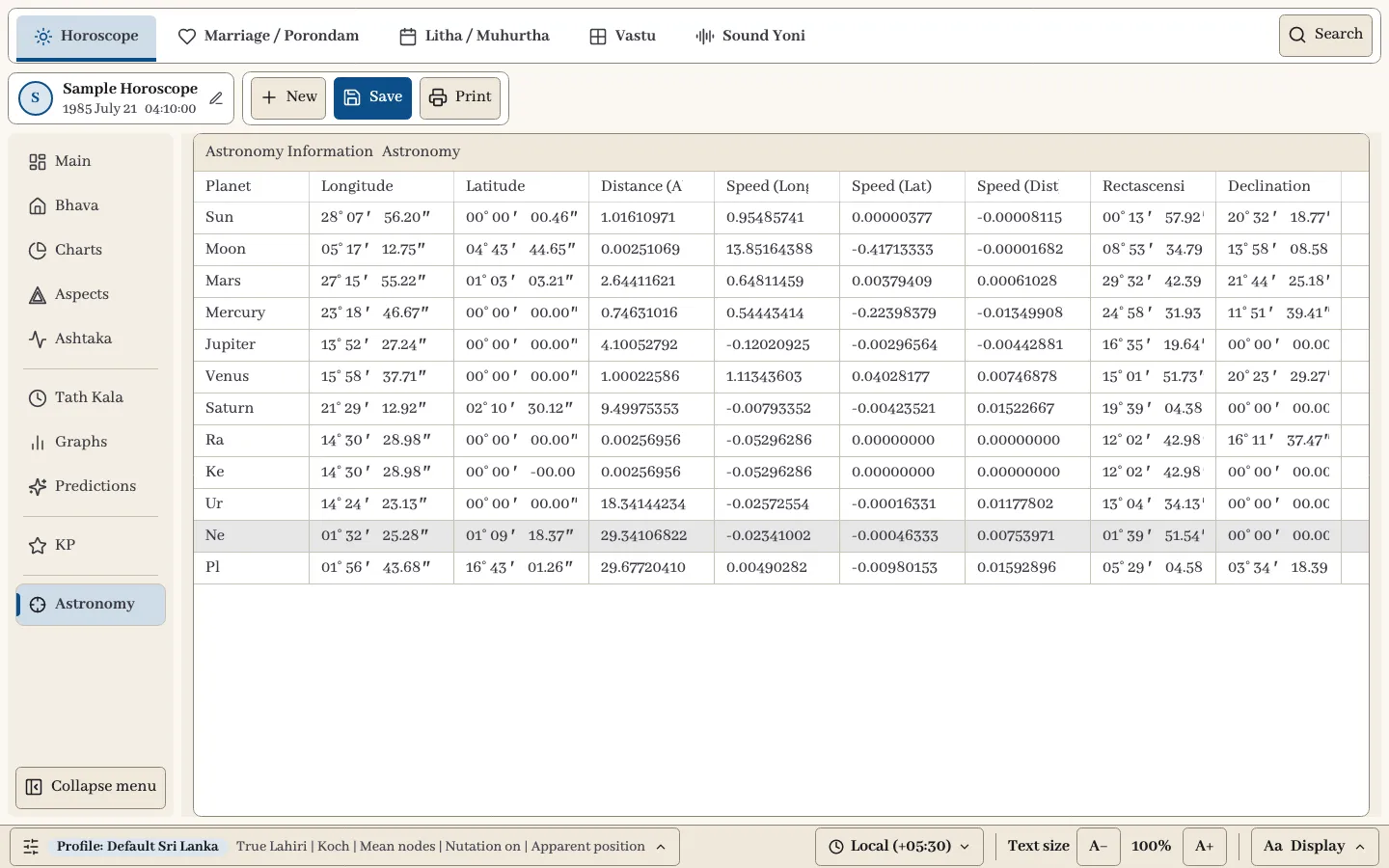
Chart notes
More → File → Info opens the notes kept with the horoscope.
Marriage / Porondam
Marriage works with two birth records and matches them across 38 Kuta variations, in both the Sri Lankan and Indian traditions.
Enter the couple
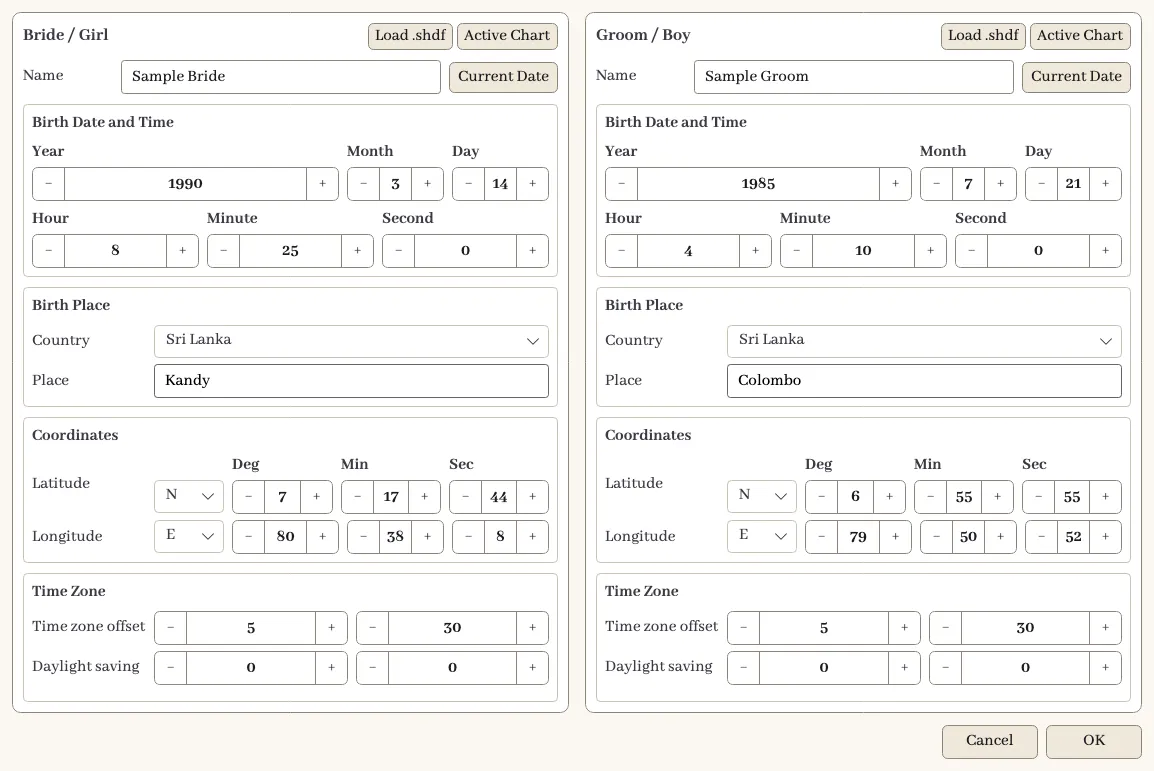
Select Bride & Groom Birth Data to enter both people. There are quicker ways to fill it:
- Import Active Chart as Bride or Import Active Chart as Groom uses the chart open in Horoscope.
- More → File → Send Chart to Marriage does the same from the Horoscope module.
- Active Chart and Load .shdf fill one person inside the dialog.
- Open .shdm… in the toolbar opens a saved pair from your Cloud Library.
Save .shdm… in the toolbar saves the pair to your Cloud Library. The toolbar also has a chart division selector, Print and Export PDF.
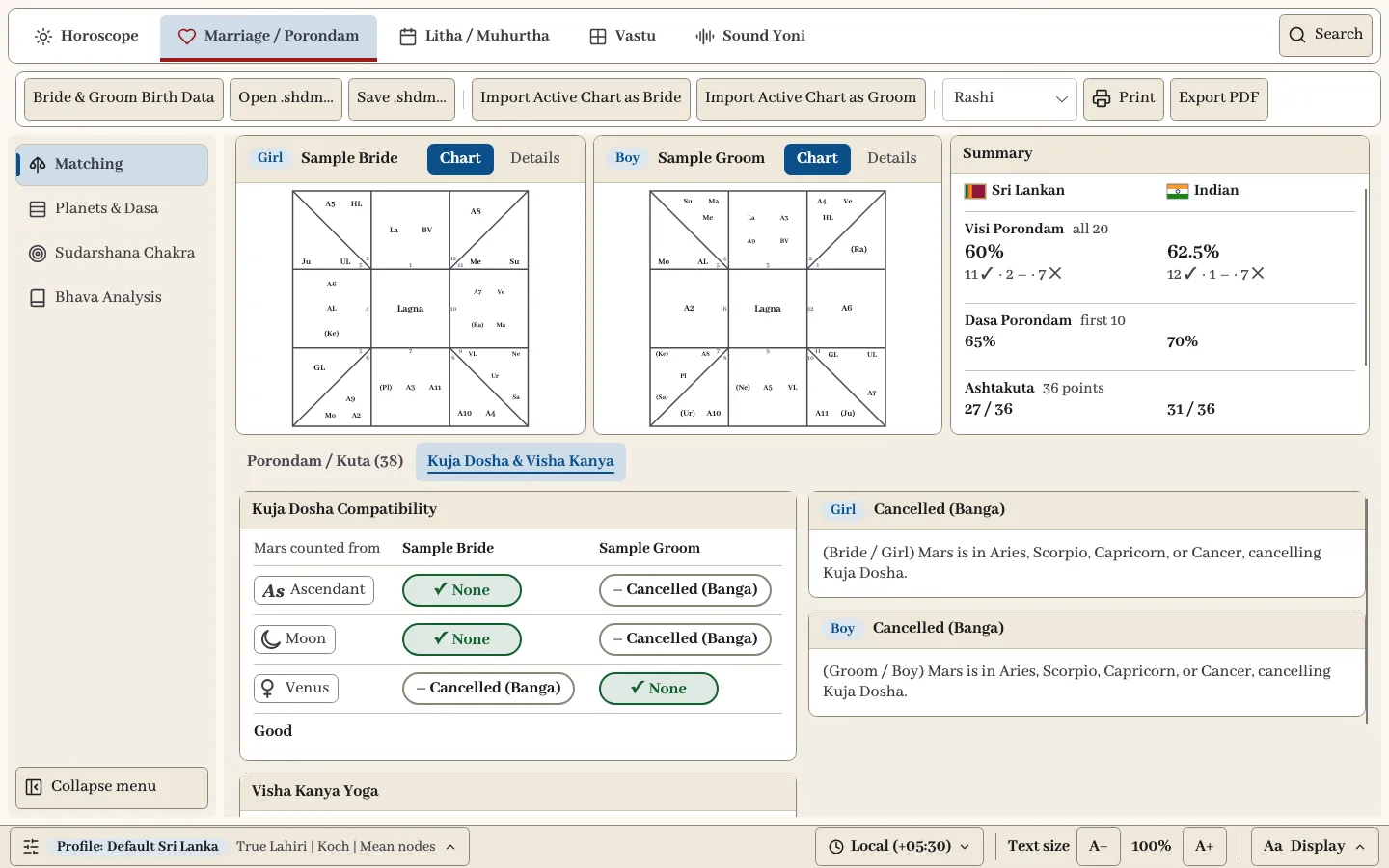
Matching
The Matching page shows a card for each person and a Summary of the results.
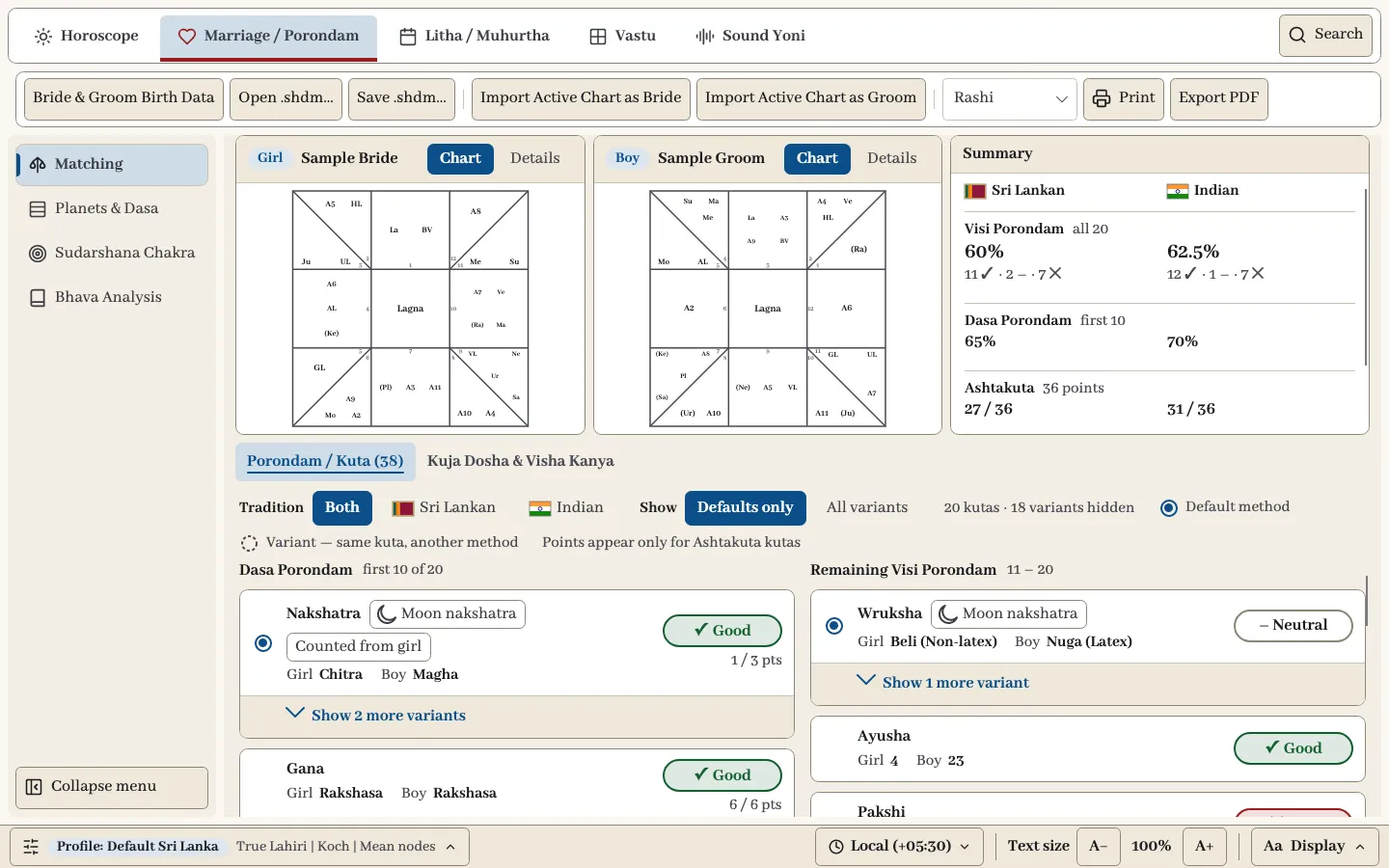
Each card switches between Chart and Details. Details gives the birth date, place, Moon Nakshatra and Pada, Moon rashi and Ascendant, with Open in Horoscope and Use active Horoscope chart.
The Summary gives separate Sri Lankan and Indian results:
| Summary line | What it counts |
|---|---|
| Visi Porondam | All 20 Porondam, as a percentage with the numbers good, neutral and bad. |
| Dasa Porondam | The first 10, as a percentage. |
| Ashtakuta | Points out of 36. |
Below it, Porondam / Kuta (38) lists each Kuta with its result. Use Tradition to choose Both, Sri Lankan or Indian.
Show has two settings. Defaults only gives the customary method for each Kuta. All variants adds the other methods, and you can also expand one Kuta with Show more variants. A solid marker is the default method; a dashed marker is a variant. Tags show what each line is counted from, such as Moon nakshatra or Ascendant nakshatra, and from which person. Points appear only for Ashtakuta Kutas.
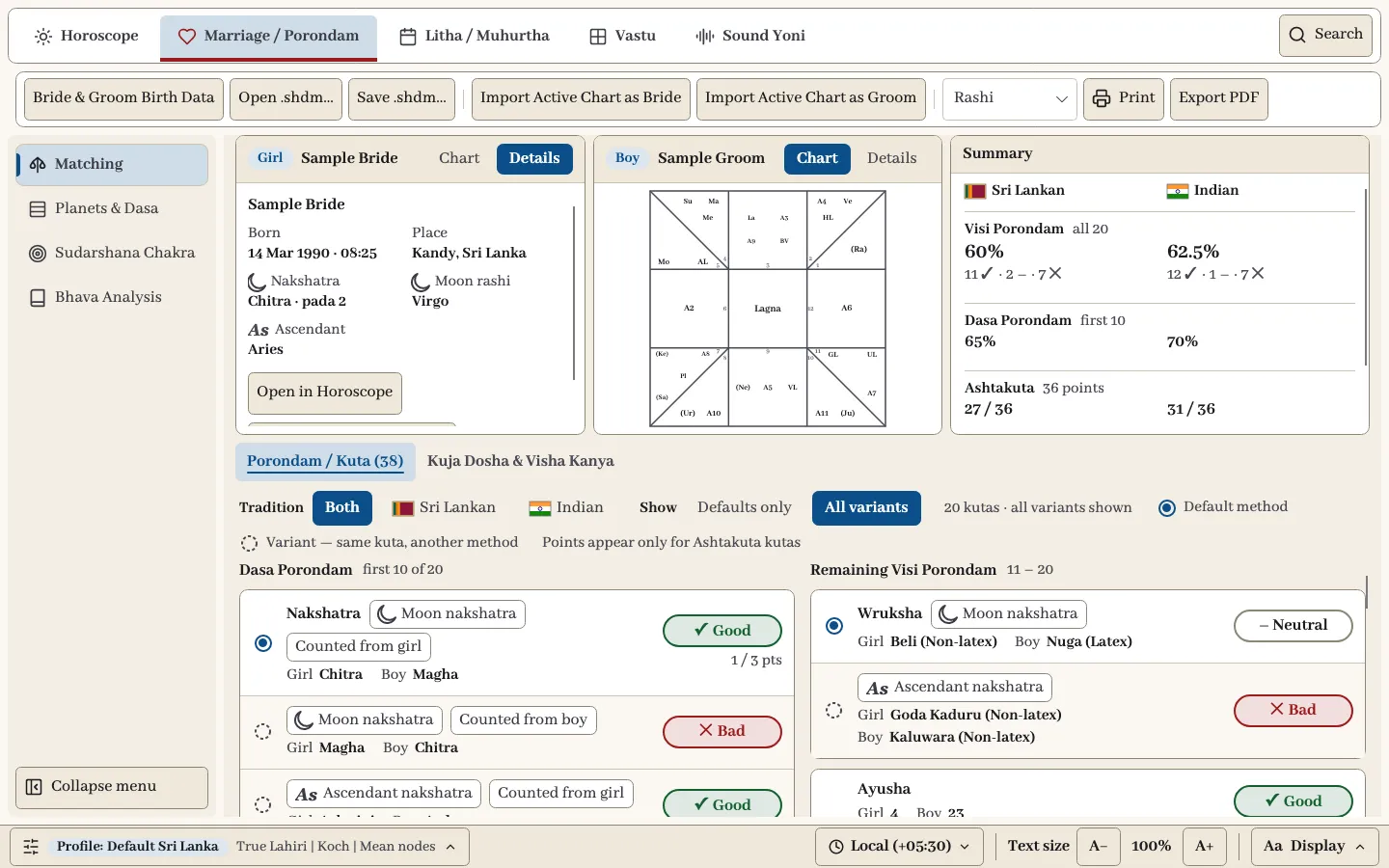
Read the Kuta results as well as the summary. A percentage alone does not explain which factors agree or differ.
Kuja Dosha and Visha Kanya
Select Kuja Dosha & Visha Kanya below the cards. Kuja Dosha Compatibility shows the result for each person with Mars counted from the Ascendant, Moon and Venus: None, Present or Cancelled (Banga). The panels beside it explain each cancellation. Visha Kanya Yoga is further down. These checks are separate from the Kuta results.
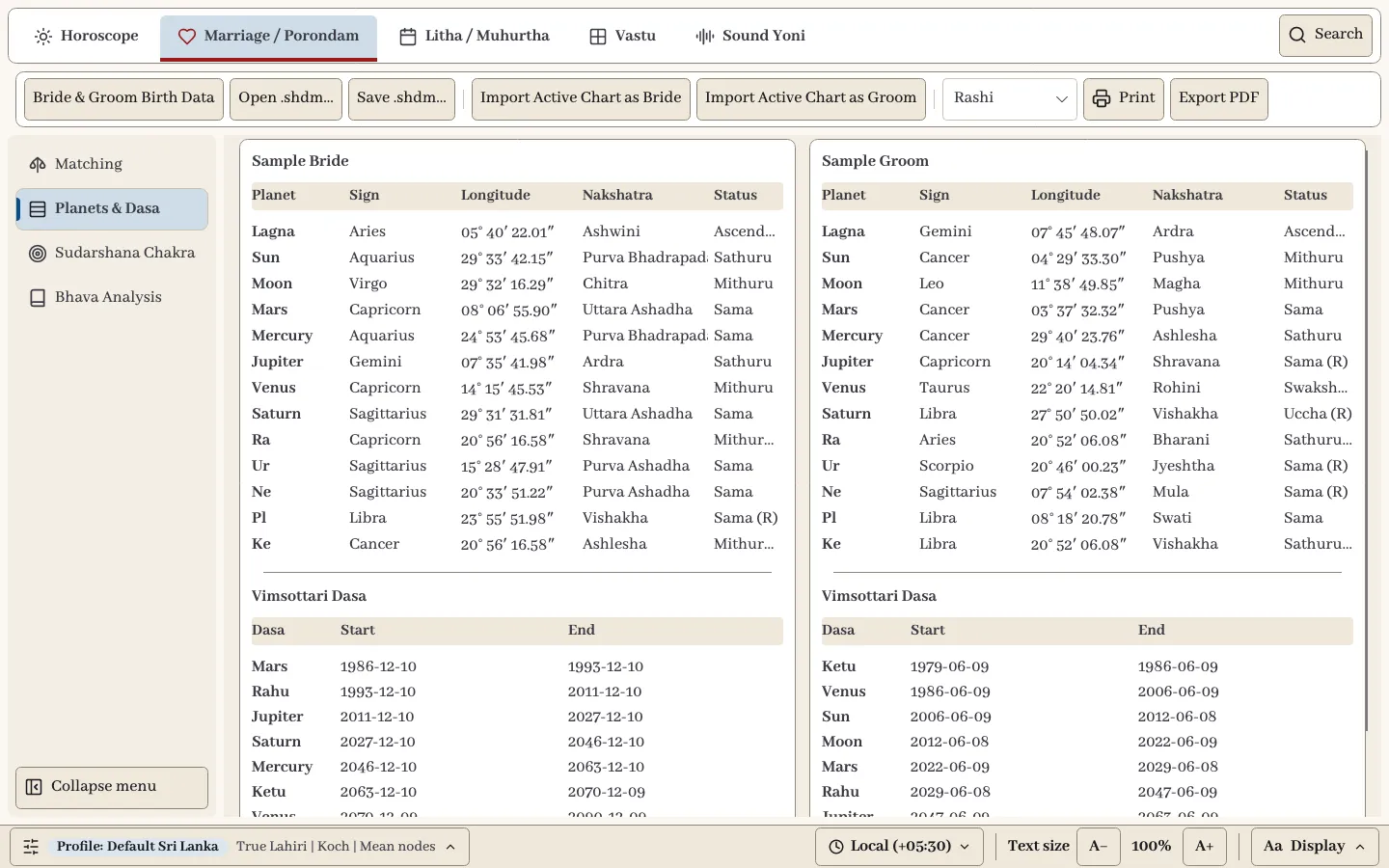
Planets & Dasa
This page sets the two people side by side, each with planets, sign, longitude, Nakshatra and status, followed by Vimsottari Dasa start and end dates.
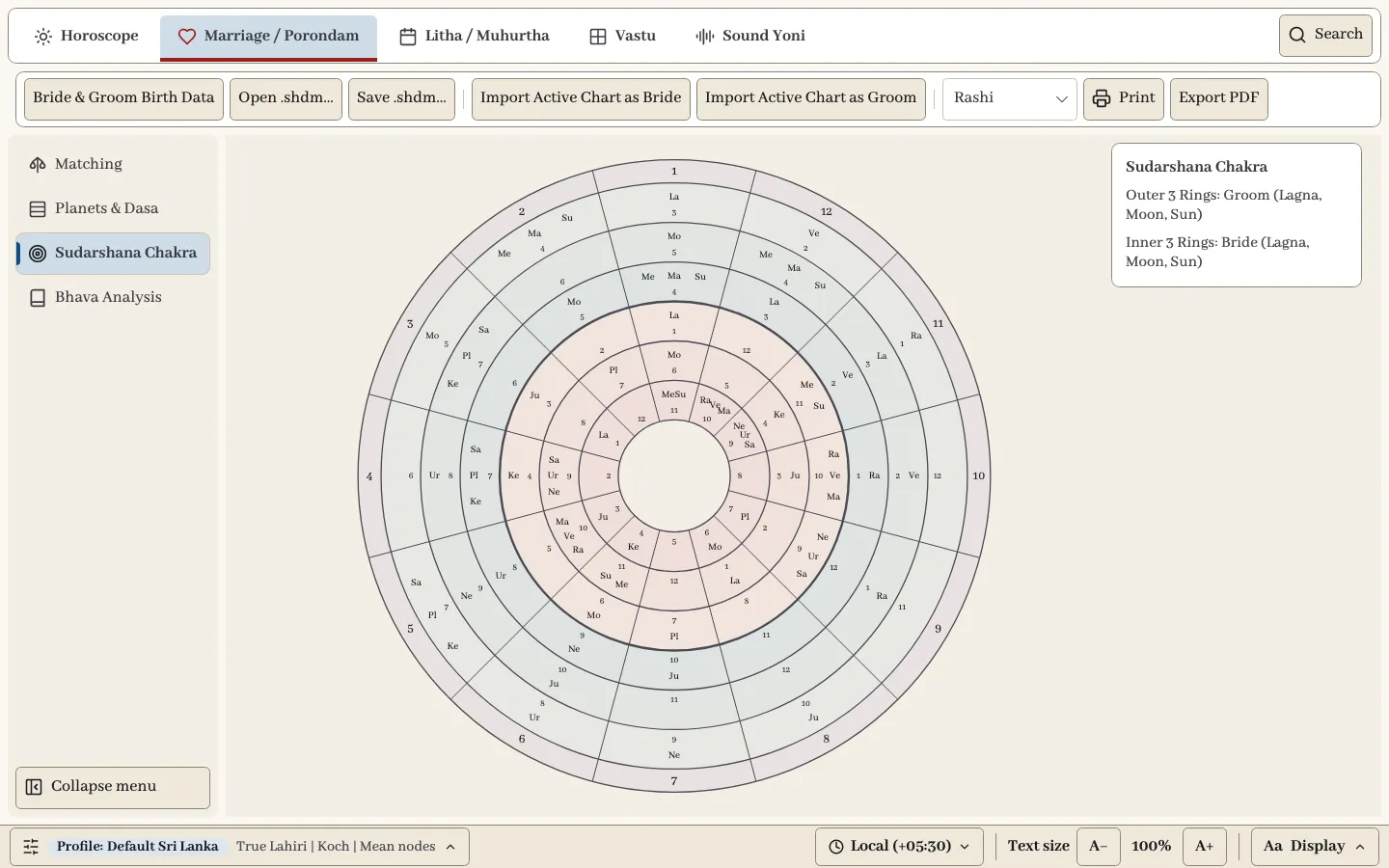
Sudarshana Chakra
One wheel shows both charts. The outer three rings are the Groom’s Lagna, Moon and Sun. The inner three are the Bride’s.
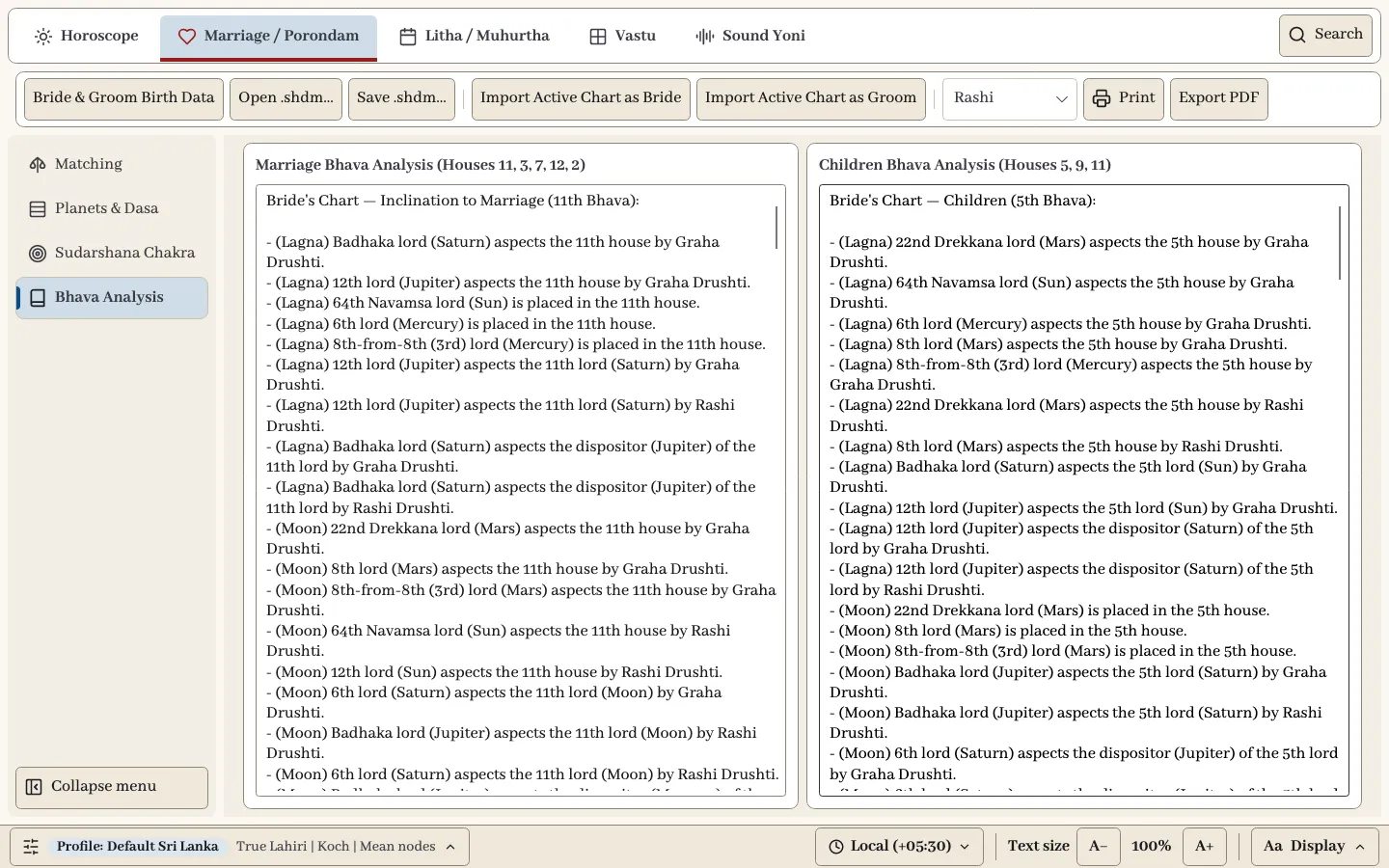
Bhava Analysis
Marriage Bhava Analysis covers houses 11, 3, 7, 12 and 2. Children Bhava Analysis covers houses 5, 9 and 11. Each entry says which chart and house it refers to, so check that before reading it.
Litha / Muhurtha
Litha finds suitable times and produces almanac tables. Every page uses the toolbar in the same way:
- Set From and To.
- Check the location button, which shows the place and time zone. Select it to change them. All times use this location.
- Choose a page in the left menu and select Refresh. Stop ends a long search.
Export to CSV saves the results for a spreadsheet. Cast Horoscope at this Moment opens a chart for the selected row. For a Muhurtha interval it uses the middle of the interval. With no row selected, it uses the present moment.
Muhurtha
There are two pages, Lanka Litha and Vidhyasara Litha, one for each method.
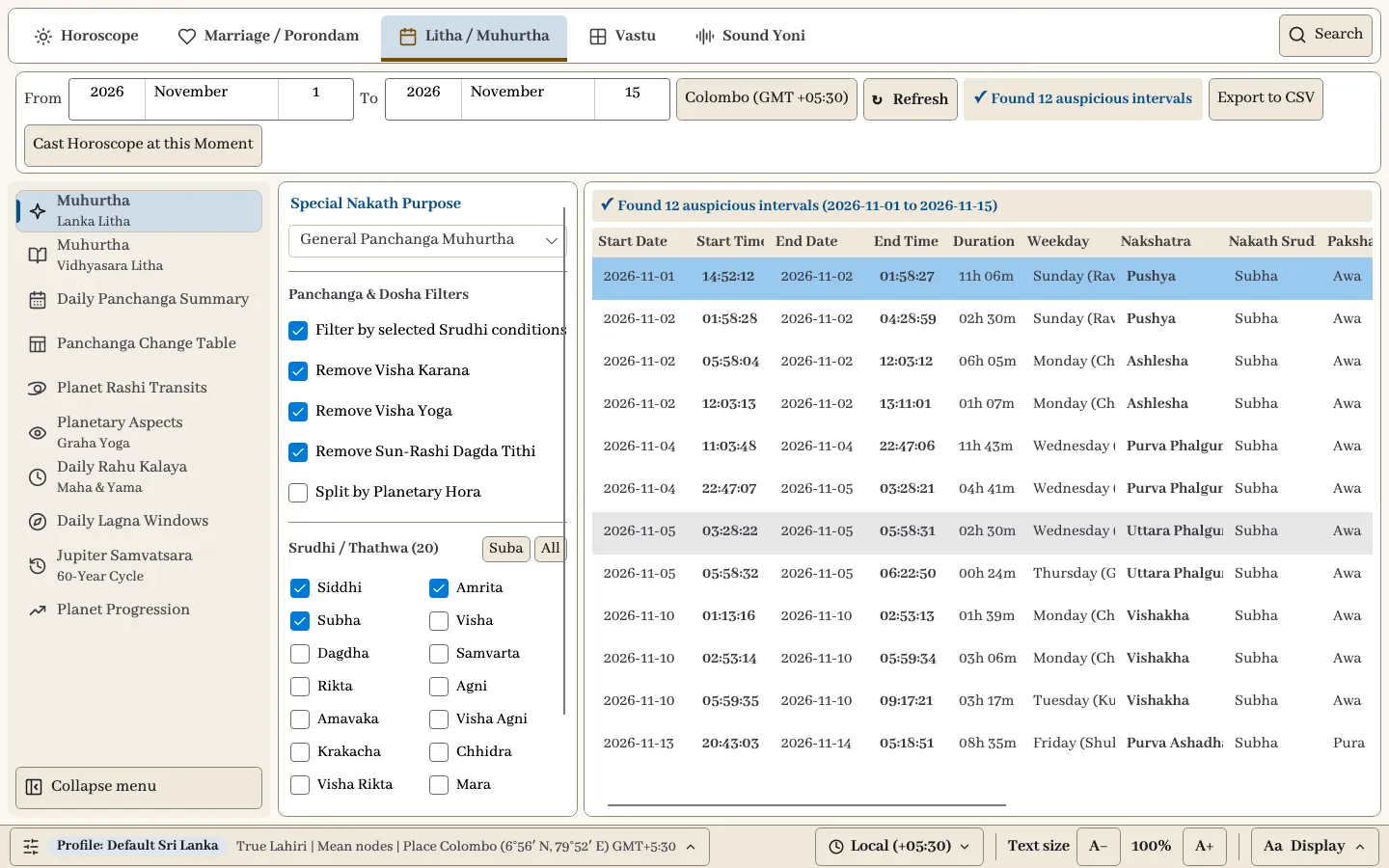
| Control | What it does |
|---|---|
| Special Nakath Purpose | General Panchanga Muhurtha, seed sowing, coconut planting, hair cutting, first solid food, ear piercing or marriage. |
| Filter by selected Srudhi conditions | Keeps only the intervals matching the ticked Srudhi types. |
| Remove Visha Karana / Visha Yoga / Sun-Rashi Dagda Tithi | Removes intervals with these doshas. |
| Split by Planetary Hora | Divides each interval by Hora. |
| Srudhi / Thathwa (20) | The types to include. Suba selects the auspicious ones; All selects every type. |
The results give start and end date and time, duration, weekday, Nakshatra, Nakath Srudhi, Paksha, Tithi, Tithi Srudhi, Karana, Yoga, Dagda Tithi, Hora and Special Nakath. Scroll sideways for the later columns.
If nothing is found, the page offers Expand Date Range (+30 Days), Expand Date Range (+1 Year) and Reset Filters to Auspicious.
Daily Panchanga Summary
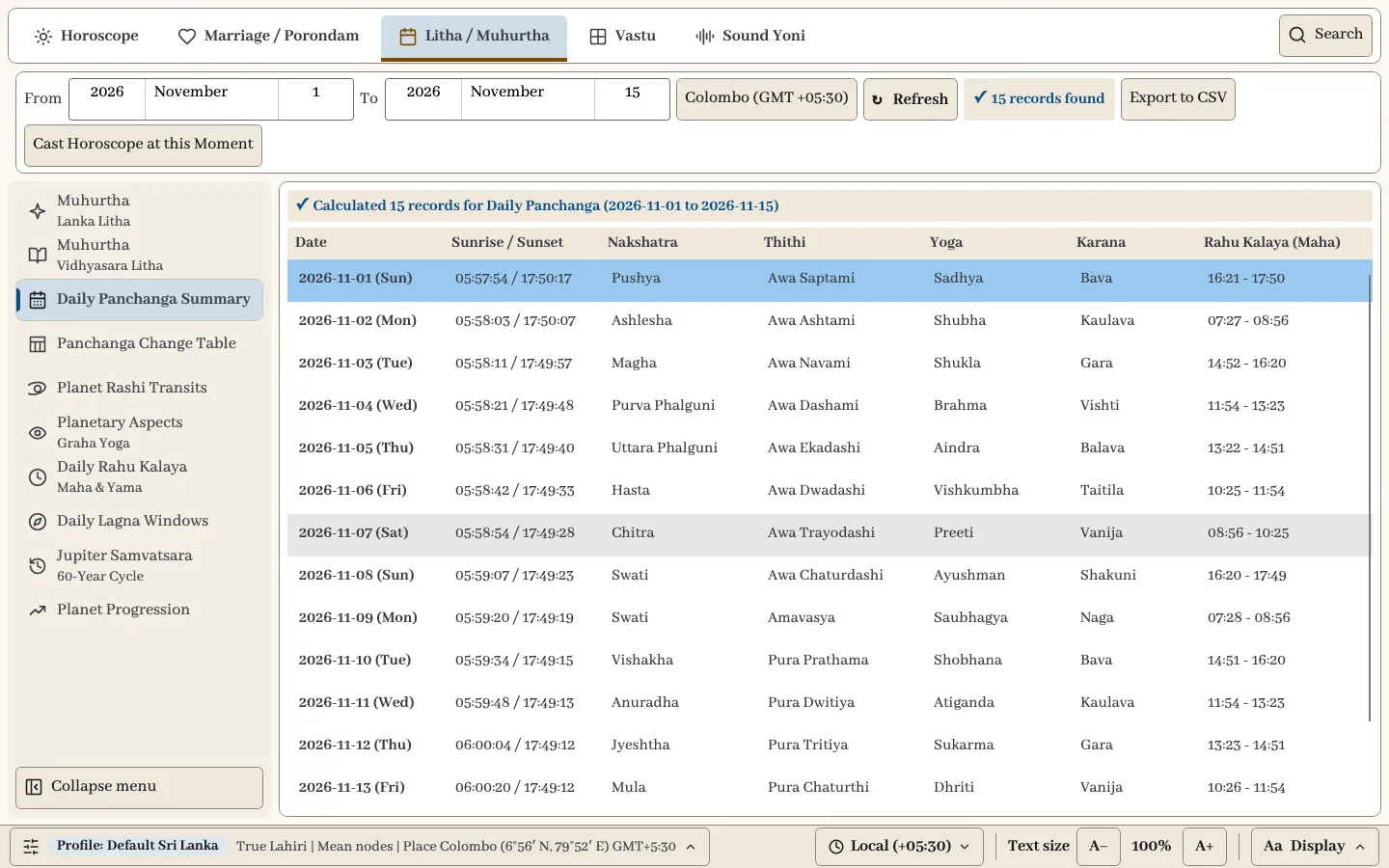
One row for each day: sunrise and sunset, Nakshatra, Tithi, Yoga, Karana and Rahu Kalaya.
Panchanga Change Table
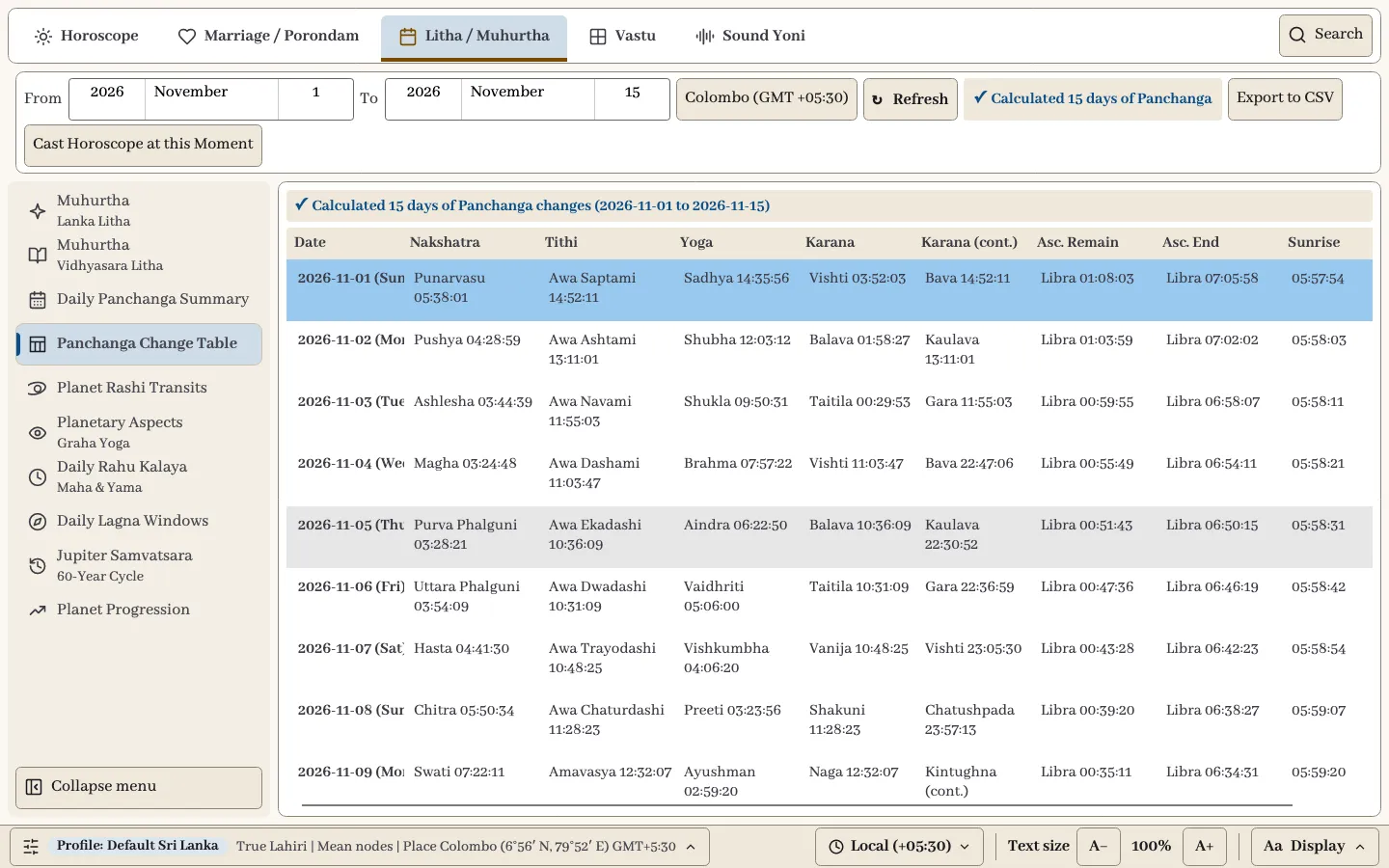
The times at which each element changes during the day: Nakshatra, Tithi, Yoga, Karana, the Ascendant remaining and ending, and sunrise.
Planet Rashi Transits
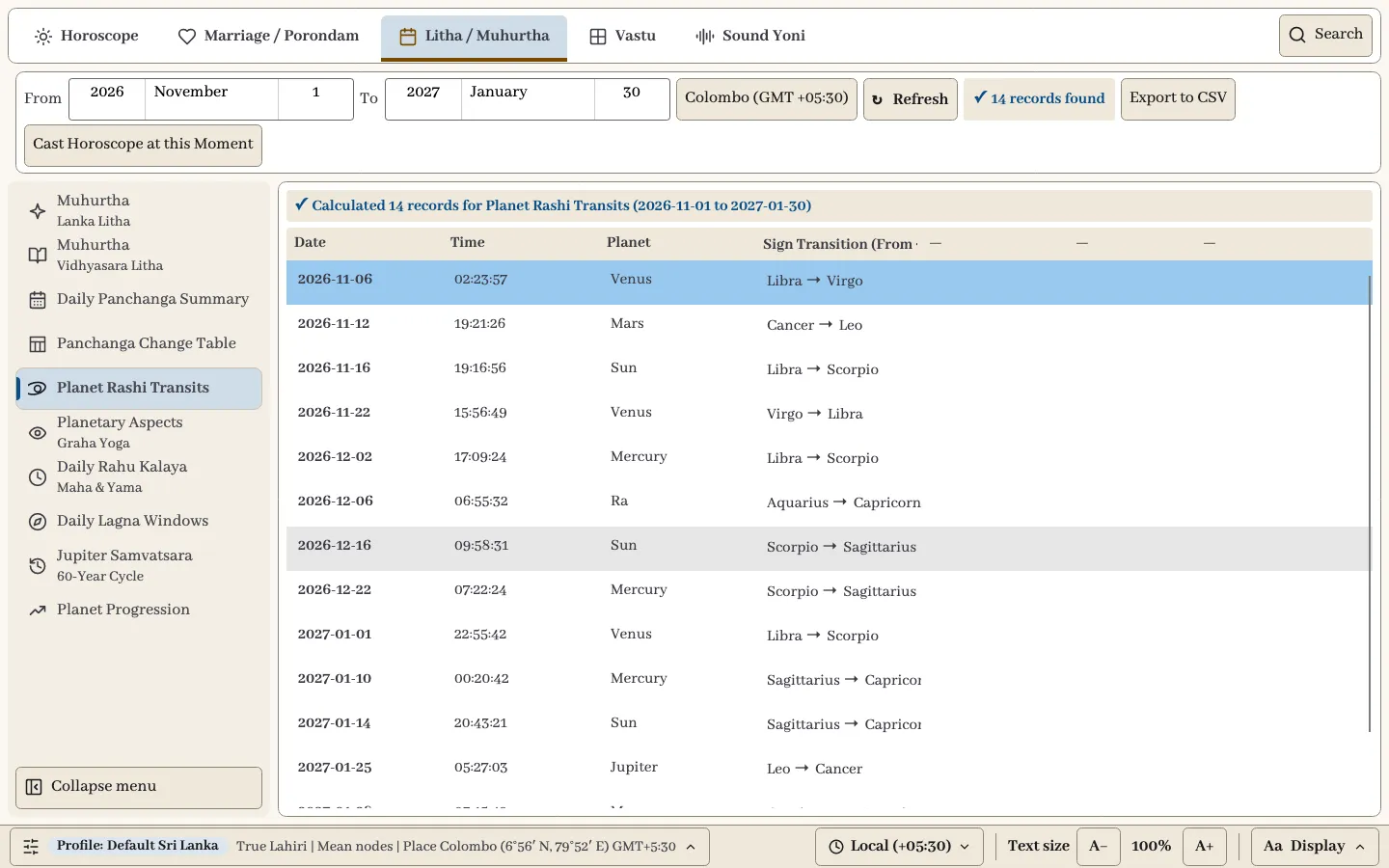
Each planet’s change of sign, with date and time. Use a longer date range to see the slower planets.
Planetary Aspects
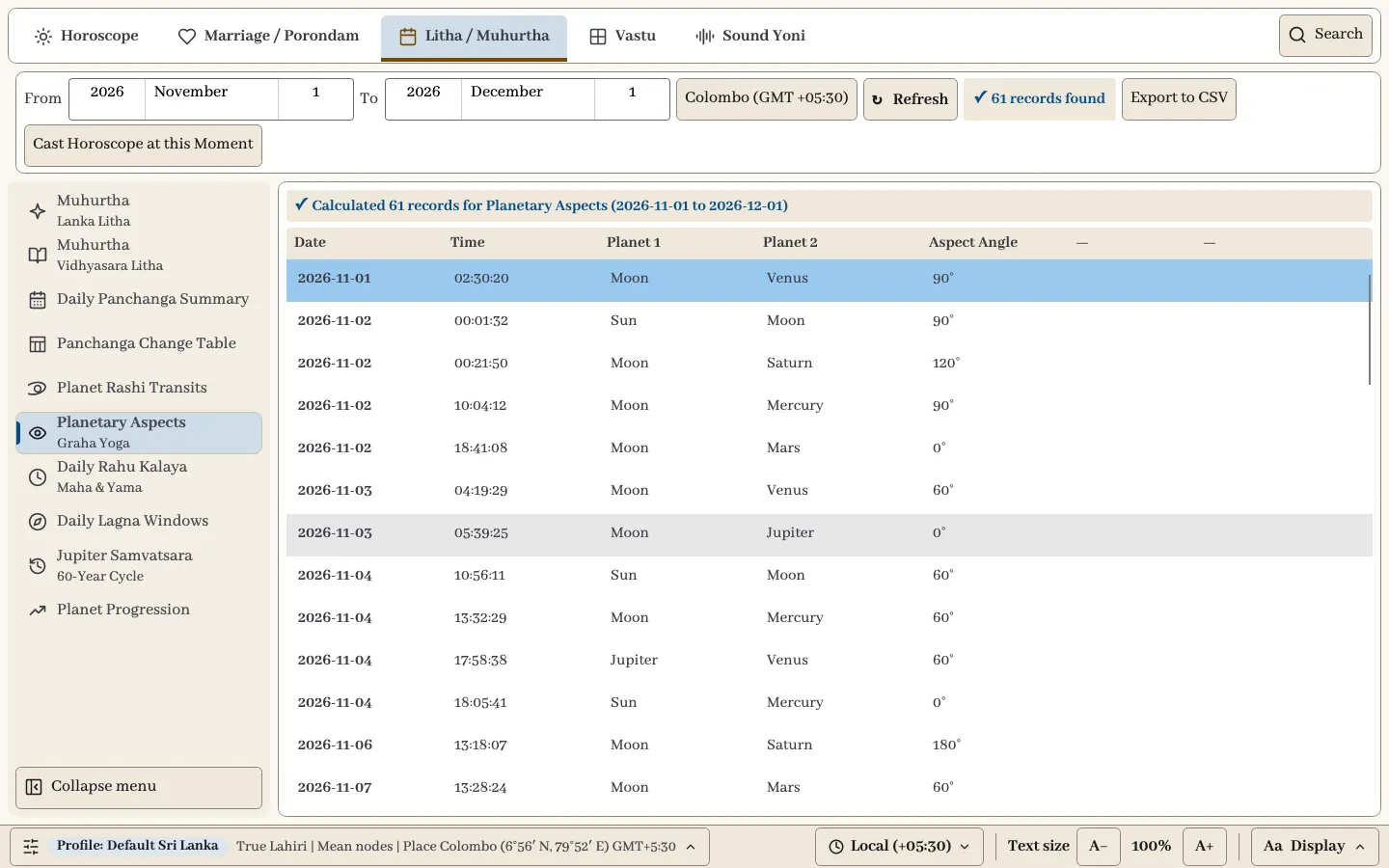
Each exact aspect (Graha Yoga) with date, time, the two planets and the angle.
Daily Rahu Kalaya
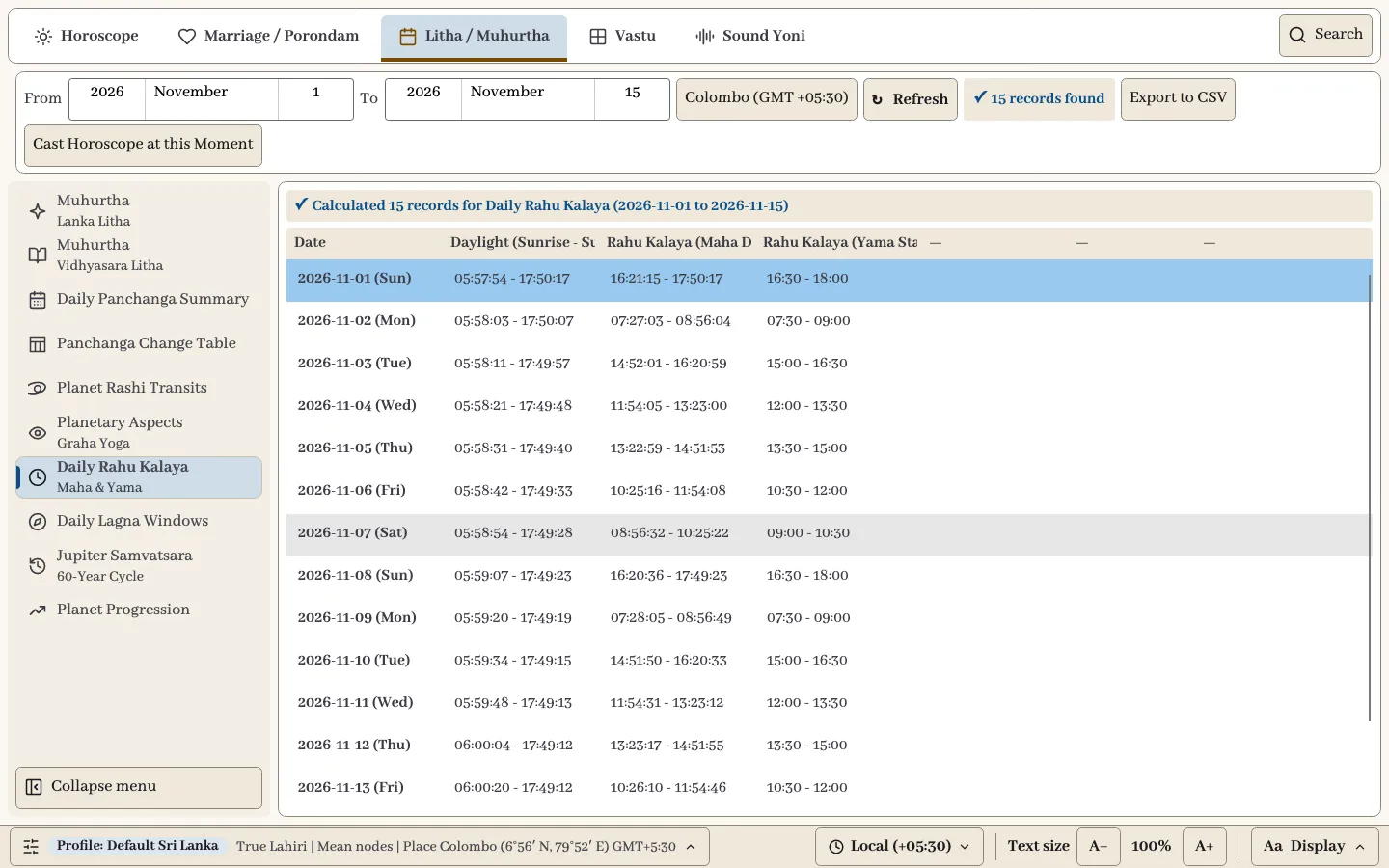
Daylight hours with Maha and Yama Rahu Kalaya for each day.
Daily Lagna Windows
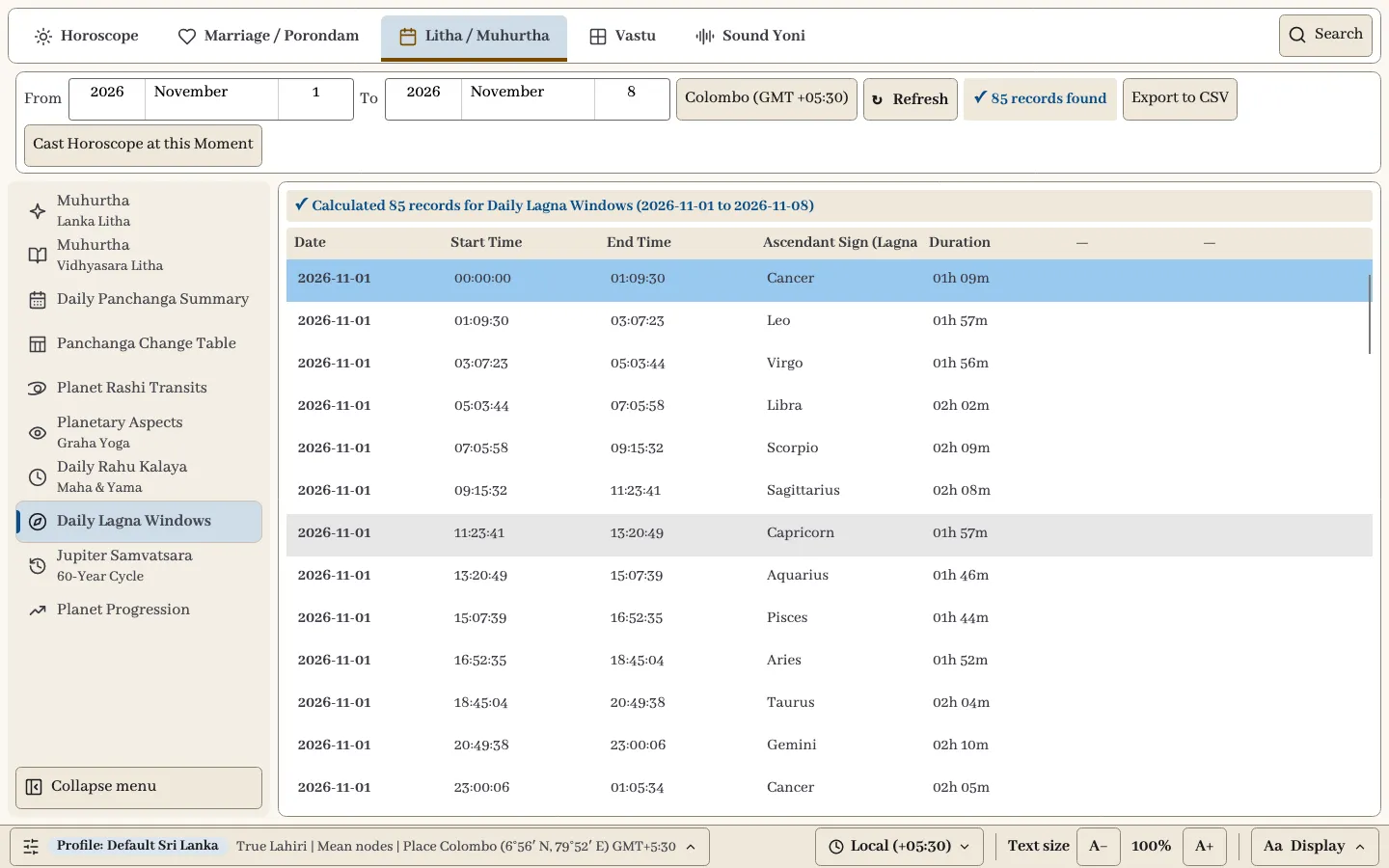
The start time, end time and duration of each rising sign through the day.
Jupiter Samvatsara
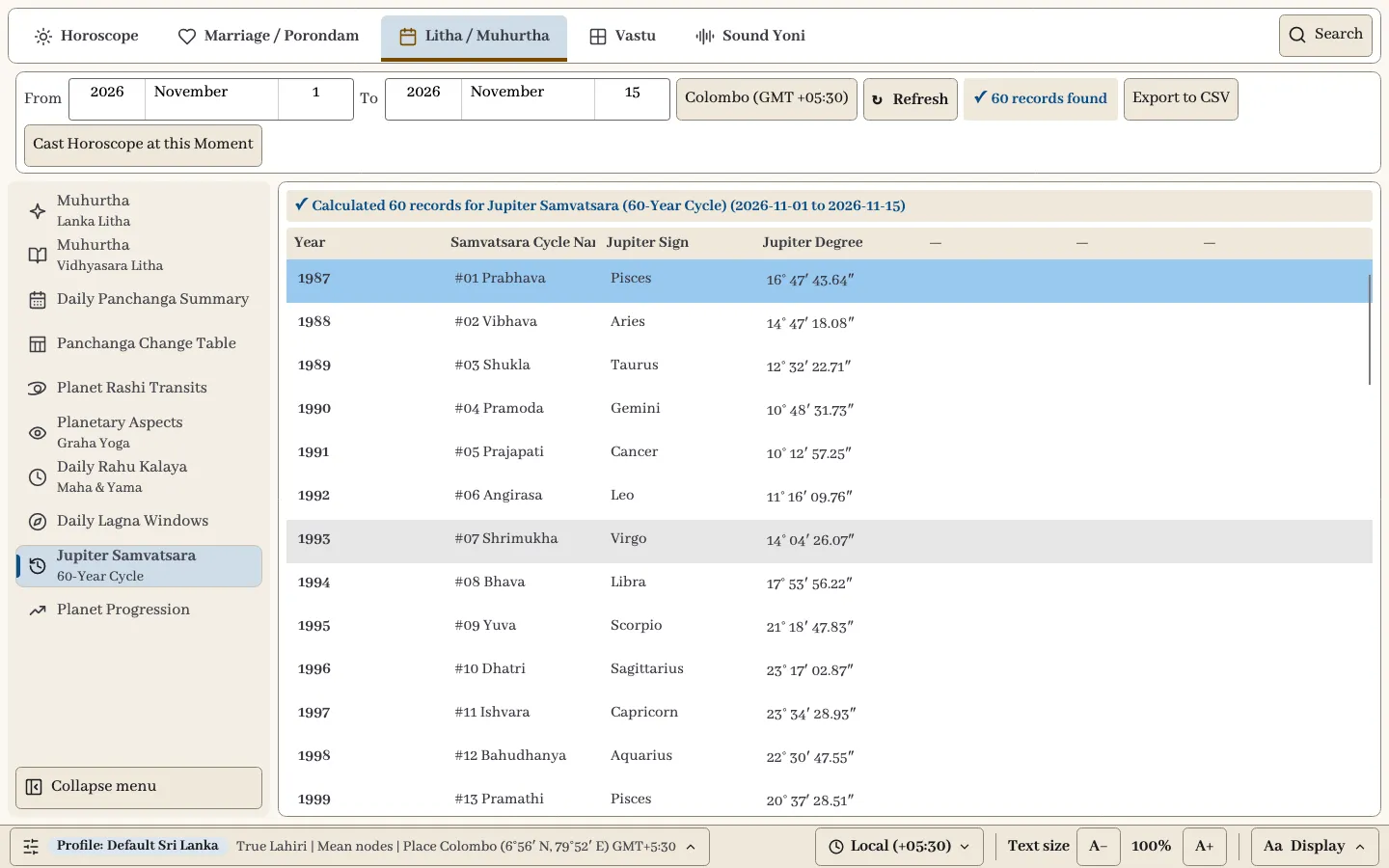
The 60-year cycle: year, Samvatsara name, Jupiter’s sign and degree.
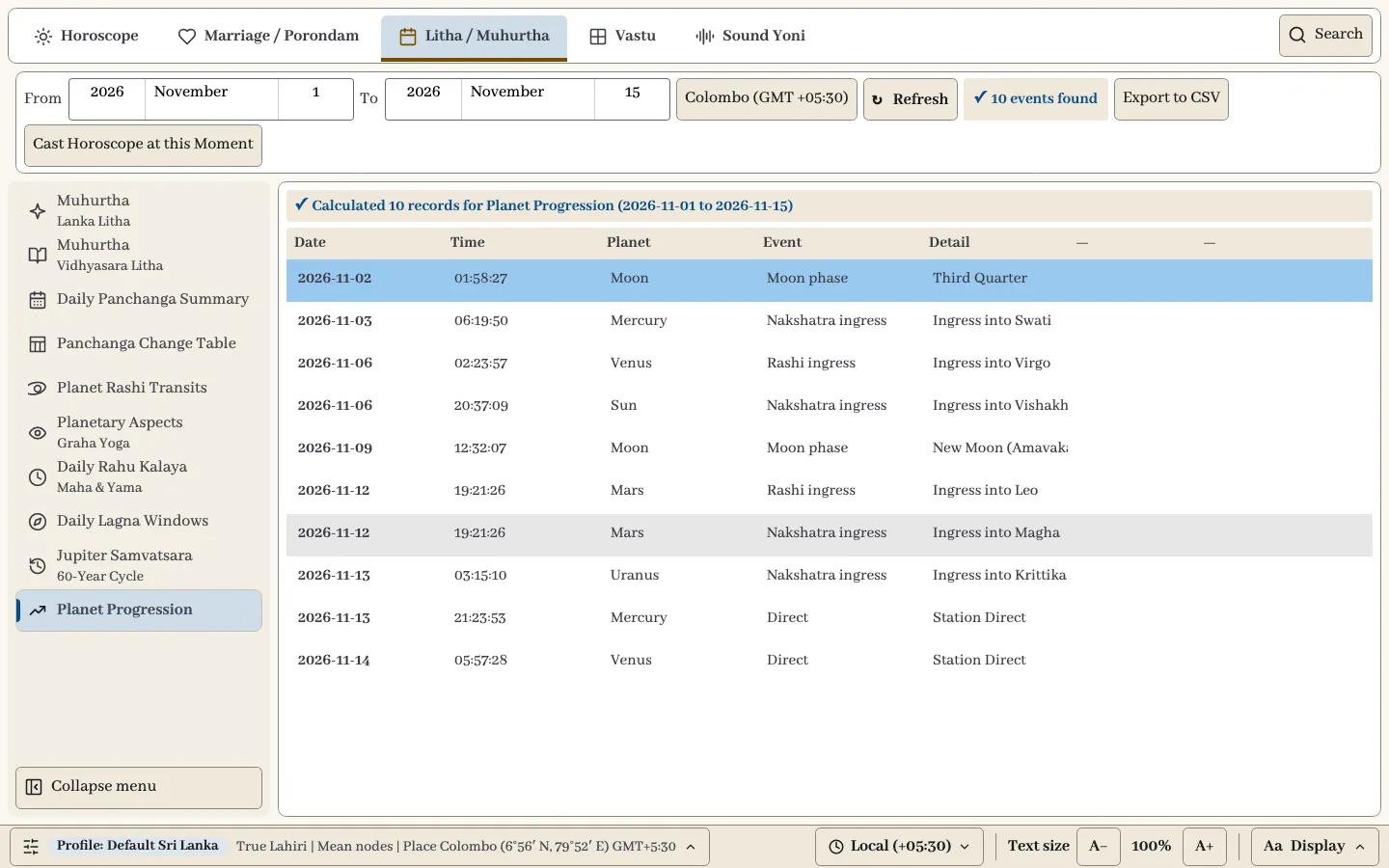
Planet Progression
Events over the range in time order: Moon phases, Rashi and Nakshatra ingresses, and retrograde and direct stations.
Vastu: Ekadasa Varga
Vastu checks a floor area against the eleven Ekadasa Varga factors.
- Choose the Vadu Riyana Unit: Standard 31 inches, Standard 32 inches or Homeowner’s Arm Length. For the arm length, enter the Length in Inches.
- Enter the Floor Area and its unit: Square Feet, Square Meters or Vadu Riyan (Sq).
- Choose the homeowner’s birth Nakshatra, or select Use Birth Nakshatra from Active Chart.
- Select Calculate.
The top of the page gives the Yoni (Varga) with its guidance, the area in square Vadu Riyan, and how many of the eleven factors are auspicious. The table gives each factor’s value and result: Aya, Vaya, Yoni, Nakshatra, Dina, Anshaka, Rashi, Tithi, Wansha, Dewatha and Ayusha.
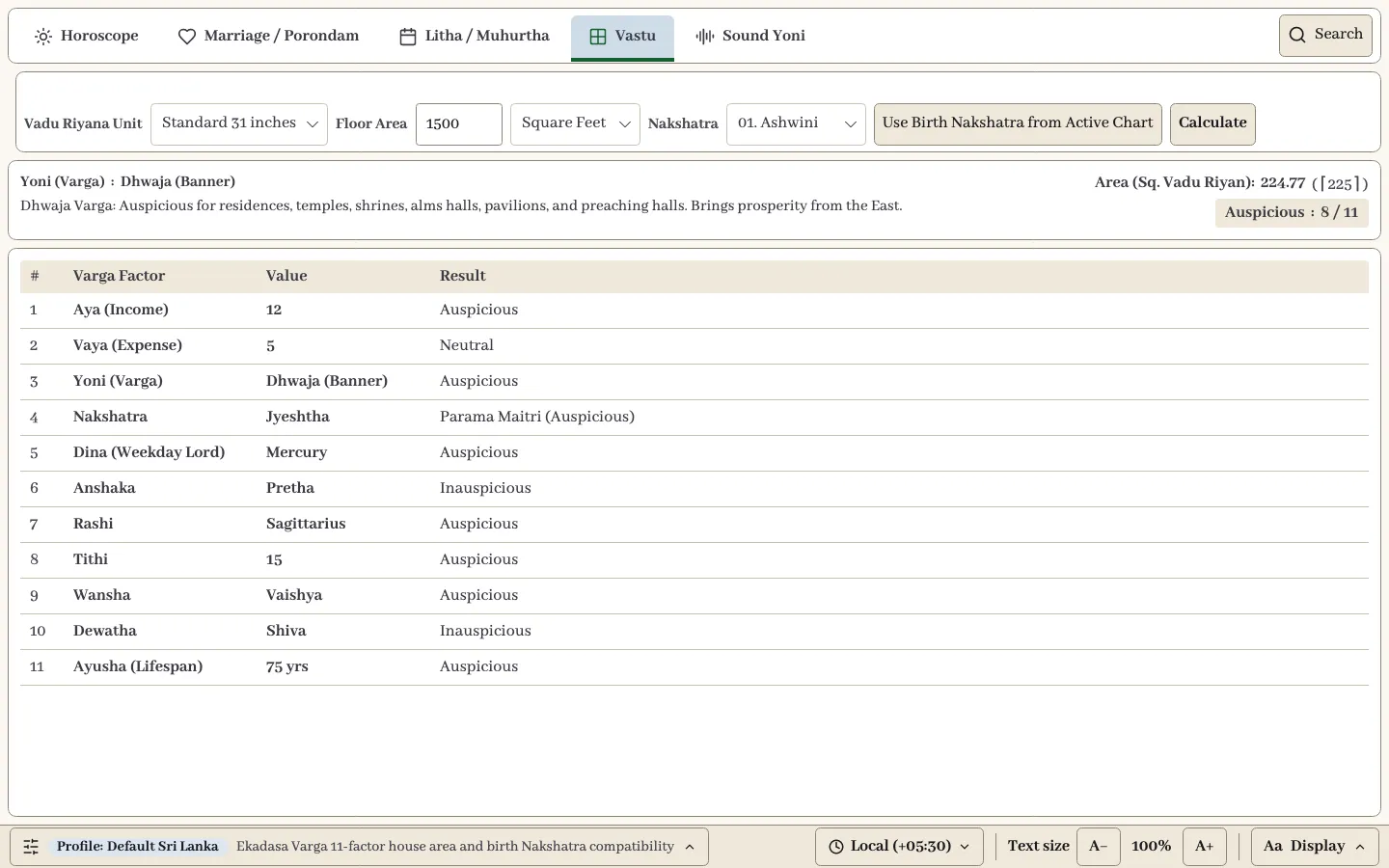
Read the eleven rows as well as the count, because the factors can point in different directions. Check the unit before comparing two buildings.
Sound Yoni
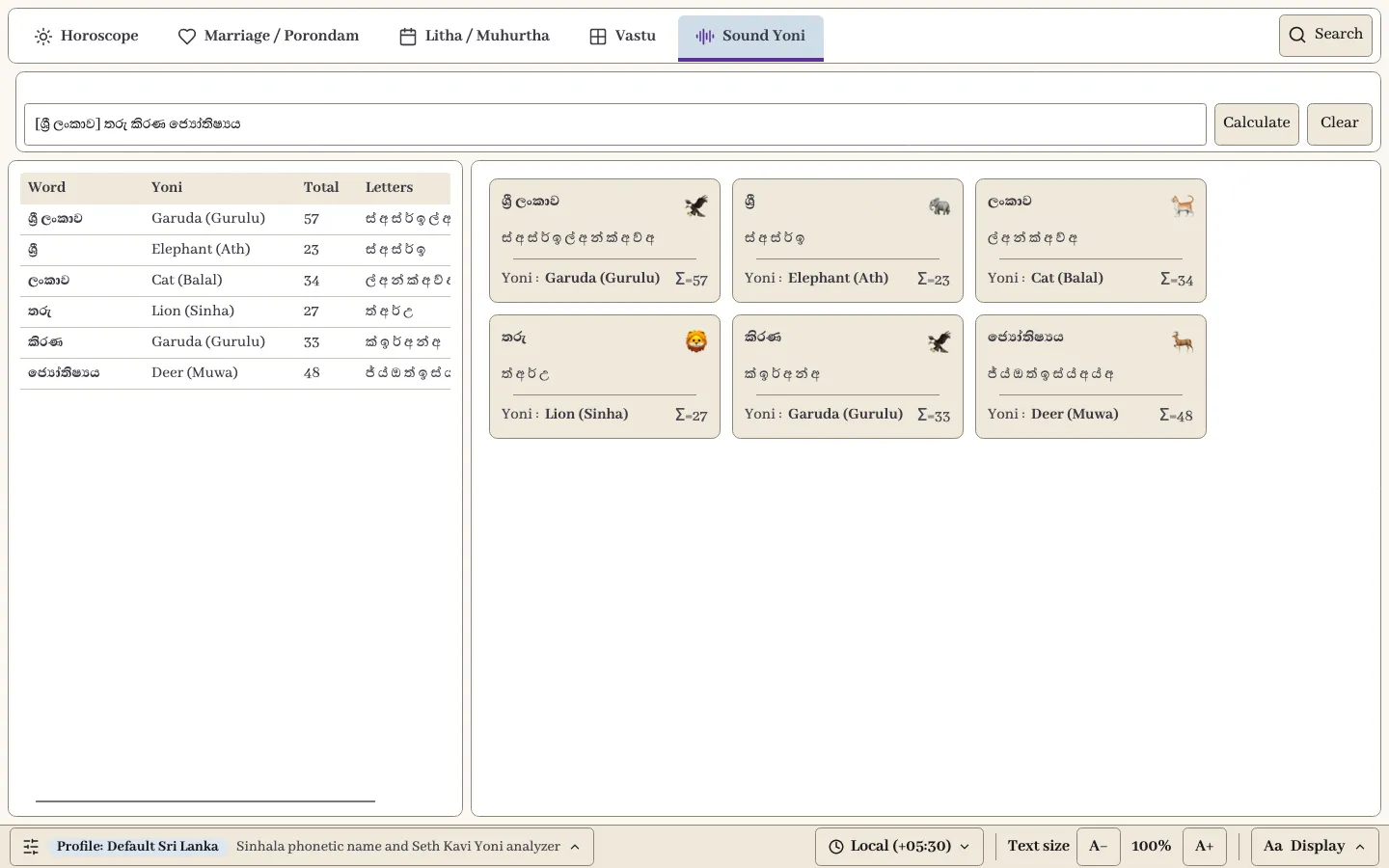
Sound Yoni analyses a Sinhala name or word.
- Type a name, a Seth Kavi or other words in Sinhala Unicode. Separate words with spaces. Put a phrase in square brackets, such as
[ශ්රී ලංකාව], to analyse it as one unit. - Select Calculate. Clear starts again.
The table lists each word with its Yoni, total and separated letters. The cards on the right show the same results with the Yoni symbol. The result depends on the exact spelling, so a different spelling can change it.
Save and open your work
Save to the Cloud Library
Save stores the record in your Cloud Library. Give it a Name and any Tags, such as Family or Match. If the record is already in the Library, Save updates it; tick Save as a new item to keep a separate copy. Marriage pairs are saved the same way from the Marriage module.
Open a record
Open shows the Cloud Library.
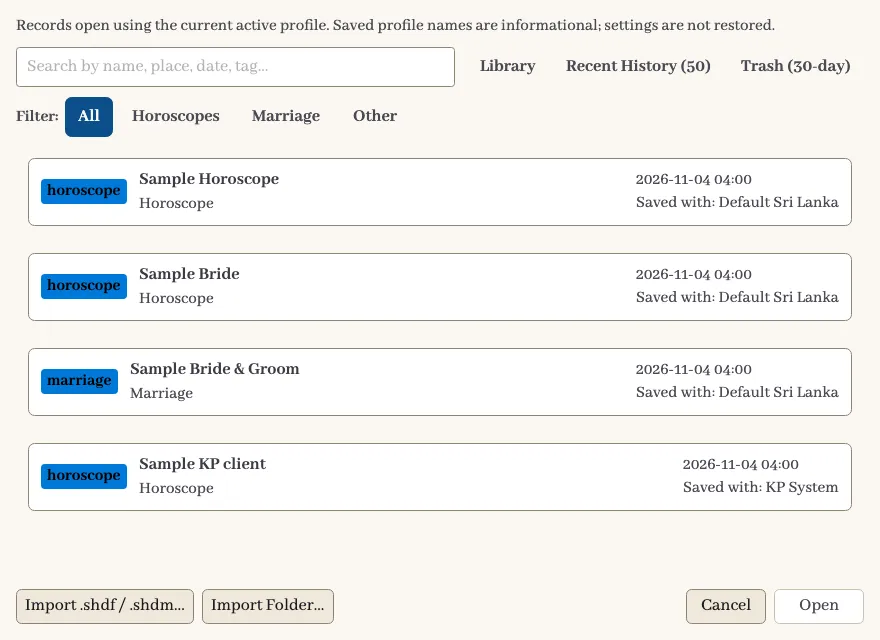
| Part | What it does |
|---|---|
| Search | Finds records by name, place, date or tag. |
| Library | Your saved records. |
| Recent History (50) | The last 50 charts you used. |
| Trash (30-day) | Records you deleted, kept for 30 days. Select one to Restore it, or use Permanent Delete to remove it for good. |
| Filter | Shows All, Horoscopes, Marriage or Other. |
Each record shows the profile it was saved with. Records always open with your current active profile, and the saved profile’s settings are not restored. If you need to repeat an earlier reading, switch to that profile first.
Bring in older charts
Import .shdf / .shdm… and Import Folder… add charts from Tharu Kirana files to your Library. Records already in the Library are skipped.
If a save is refused
If the record was changed somewhere else since you opened it, the app warns you before saving. You can choose Save anyway to overwrite it, or cancel and reopen the latest version.
If you lose your connection, the Library shows a read-only copy with a notice. Reconnect to save or calculate.
Settings and profiles
A profile is a named set of calculation, display and print settings. Tharu Kirana comes with these built-in profiles, which cannot be edited: Default Sri Lanka, Sri Jayathu, Achyuta Gurukul (Sanjaya Rath), Achyuta Gurukul (Narasimha Rao), KP System, Khullar and North Indian Traditional.
To switch profile, select the settings bar at the bottom left, then Switch Profile. Sync profiles there exchanges profile changes with your account. Your profiles are separate from your charts.
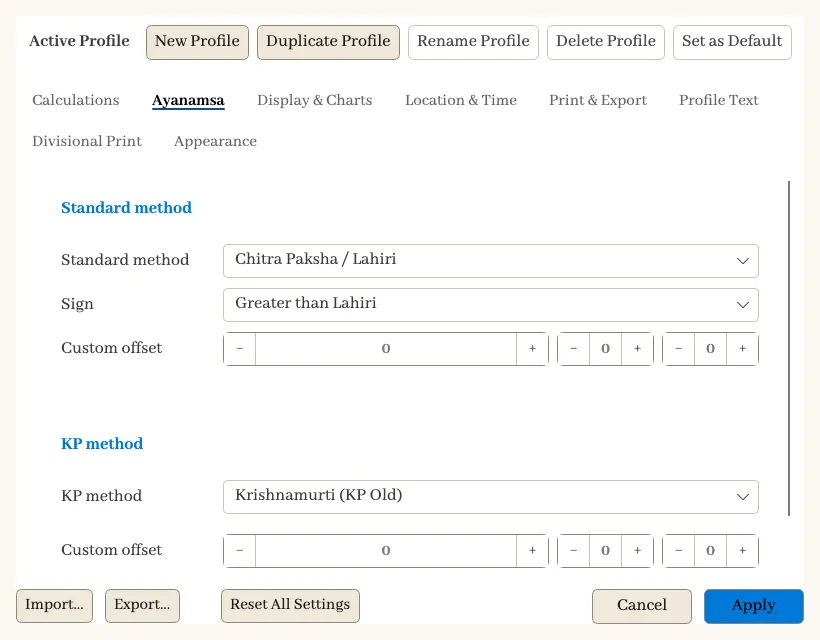
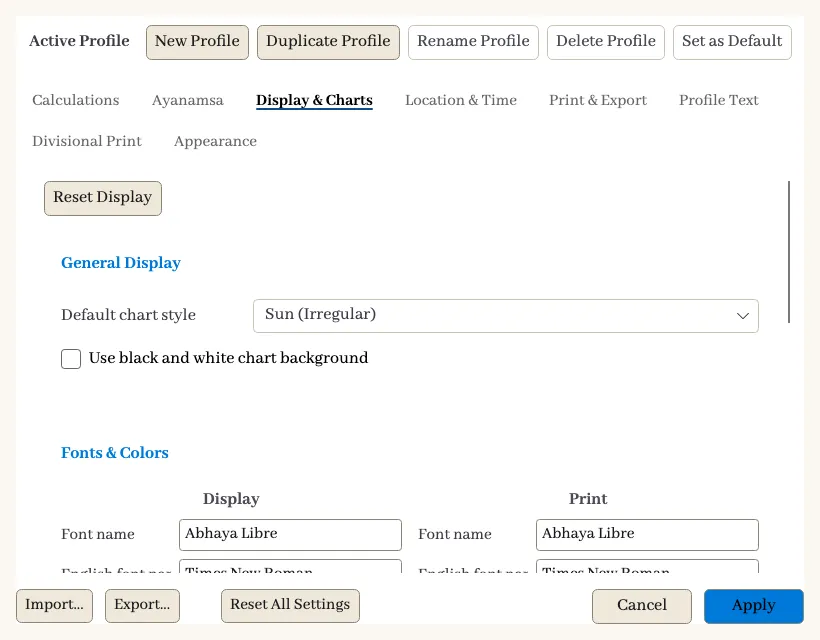
Open Settings from More → Options → Settings…. New Profile and Duplicate Profile at the top make a profile you can change. Import… and Export… load settings from a file or save them to one, and Apply saves your changes.
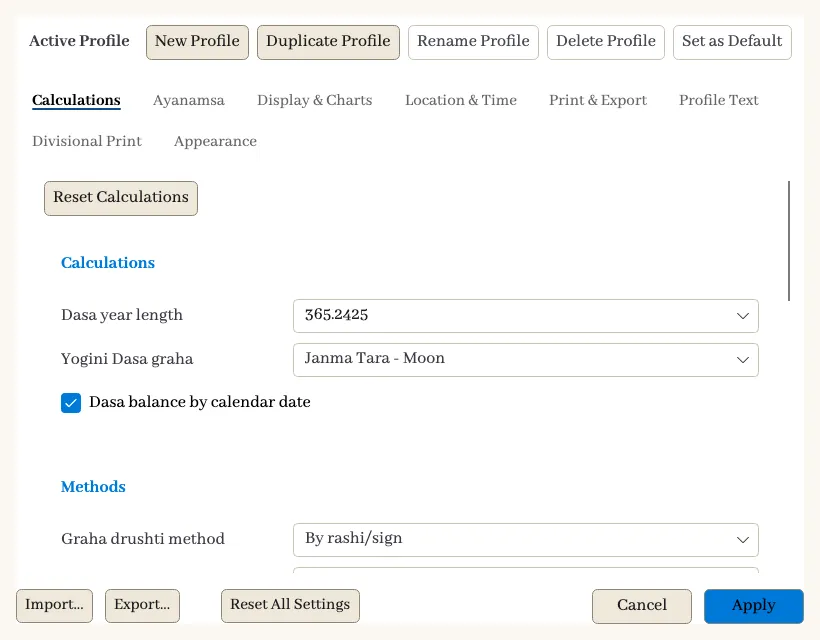
| Tab | What you can set |
|---|---|
| Calculations | Dasa year length, Yogini graha, Graha Drushti and Graha Yoga methods, Rahu and Ketu (mean or true), planet position mode, nutation, bhava system (Placidus, Koch, Porphyrius/Sripati, Regiomontanus, Campanus, Equal and others), Arudha rules, Upagraha methods and KP options. |
| Ayanamsa | The standard and KP ayanamsa methods, including Chitra Paksha / Lahiri, True Lahiri, Raman, Krishnamurti, KP New, Khullar, Pushya Paksha, Fagan / Bradley and Sayan (Tropical), with an optional custom offset. |
| Display & Charts | Chart style, black and white background, fonts and colours for screen and print, and which extra points appear in charts. |
| Location & Time | Default Tath Kala location, time zone and sunrise definition. |
| Print & Export | Black and white print, line width, pictures, footer, Dasa printing and printed planet names. |
| Profile Text | Your name and address lines, headers and footer text for printed pages. |
| Divisional Print | The chart printed in each of the 12 slots of the Varga page and the book. |
| Appearance | The app theme. |
Ayanamsa and bhava system choices change the results, so check the active profile before comparing two readings.
Print and export
Select Print to choose a document. The tabs group them into All Documents, Horoscope Sheets, KP System, Chakras & Specialized and Marriage Matching. Select a card to open its preview, or use PDF on a card to export it directly.
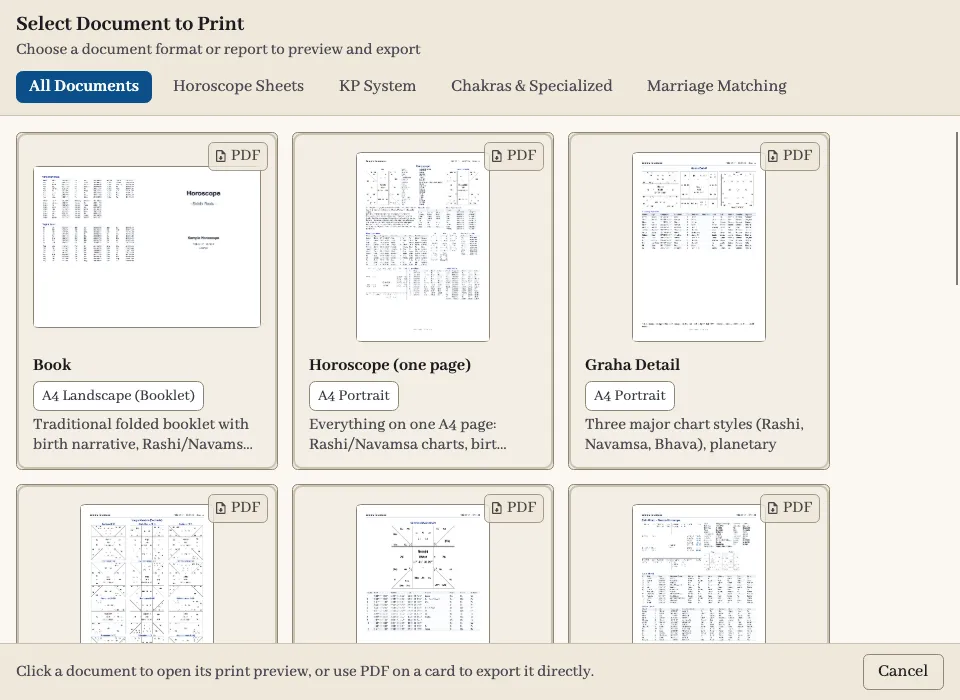
| Document | Contents |
|---|---|
| Book | Folded booklet with the birth narrative, charts, bhava cusps and Dasa tables. |
| Horoscope (one page) | Everything on one A4 page. |
| Graha Detail | Rashi, Navamsa and Bhava charts, planet positions and Balayas. |
| Varga Kendra | Divisional chart sheets. |
| Nirayana Bhava Chart | The Bhava chart with cusps, midpoints and planets. |
| Krishnamurti Chart | KP square chart with cusps and lords. |
| Krishnamurti Paddhati | KP significators and details. |
| Vimsottari Dasa / Yogini Dasa | Dasa period tables. |
| Ashtaka Varga | Points for the seven planets across the signs. |
| Sudarshana Chakra | The three-way wheel. |
| Sarvatobhadra Chakra | The 81-square chakra. |
| Sripati | Sripati houses with cusp and sandhi details. |
| Marriage | Compatibility report with Kutas, summaries, Kuja Dosha and Visha Kanya. |
In the preview, check the person, the language and every page. Fit width, Whole page, 100% and the zoom buttons change the view, and Page Up and Page Down move between pages. Export PDF saves the document. Print… opens it in your PDF viewer to print from there. For the Book, Add Sripati sheet adds the Sripati pages.
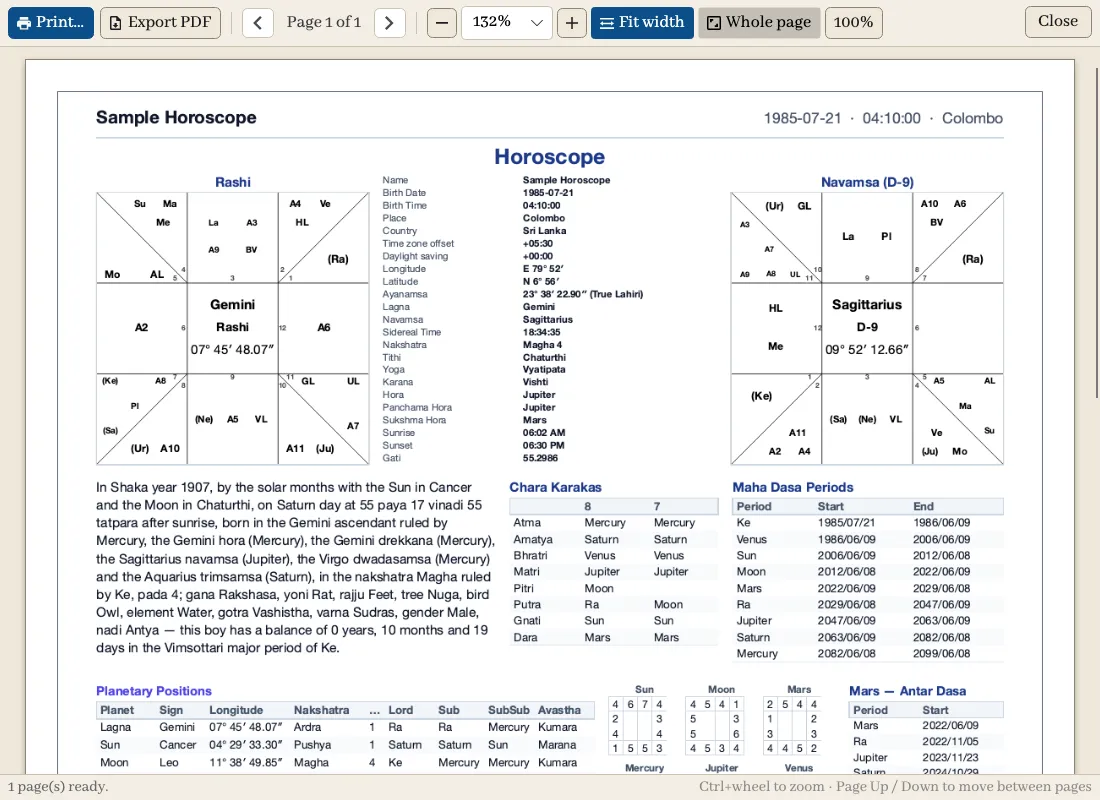
More → Options → Birth Narrative Template… changes the birth story printed on the book and reports. You can insert placeholders, see a live preview from the current chart, and add a version for another language.
Other ways to take data out of the app:
- Copy as image and Copy as text on a widget.
- Copy Chart and Copy Chart to PDF under More → Edit.
- Export to CSV on the Planet Grid and in Litha.
- Export to Document in Predictions.
Language and display
Choose English or Sinhala under More → Language. In Sinhala, astrology terms are shown in Sinhala and general software terms stay in English. Your choice of theme is under Display at the bottom right, and A− and A+ change the text size. Tables and dividers can be resized by dragging; right-click a table or divider to reset it.
Keyboard shortcuts
| Keys | Action |
|---|---|
| Ctrl+K (Cmd+K on macOS) | Search |
| Ctrl+1 to Ctrl+5 | Horoscope, Marriage, Litha, Vastu, Sound Yoni |
| F10 | Open the More menu (Windows and Linux) |
| Ctrl+Z, Ctrl+Y | Undo and redo while editing a layout |
| Page Up, Page Down | Step the time in KP; change page in print preview |
| Ctrl+Page Up, Ctrl+Page Down | Change the KP step size |
| Ctrl+P | Print from the print preview |
| Ctrl+0, Ctrl+1, Ctrl+2 | Actual size, fit width, whole page in print preview |
| Ctrl +, Ctrl −, Ctrl+wheel | Zoom in print preview |
On macOS the app menu also has Cmd+N (New), Cmd+O (Open), Cmd+S (Save), Cmd+P (Print), Cmd+, (Settings) and Cmd+1 to Cmd+5 for the modules.
Common problems
| Problem | What to do |
|---|---|
| No result, or a Retry button appears | Check your internet connection and select Retry. |
| The chart looks wrong | Check the person card, date, local time, place, time zone and daylight saving, then the active profile at the bottom left. |
| Two readings disagree | Compare their profiles. Ayanamsa and bhava system choices change results. |
| A saved record is missing | Check that you are signed in to the right account, clear the filter and search again. Look in Trash if it may have been deleted. |
| A module or section is missing | It is not part of your plan. |
| A save is refused | The record changed elsewhere. See If a save is refused. |
| A print fails | Select Retry. If it continues, contact support with the module, the document and the message shown. |
| Litha finds nothing | Widen the dates, or use Reset Filters to Auspicious. |